

Avatar Generation
- Template
- Avatar Generation, in the ComfyUI template browser under BytePlus
- Workflow file
- Avatar Generation.json
- BytePlus nodes
- Seedream, Seed Audio 1.0, OmniHuman 2.0
- Keys needed
- ModelArk API key, Seed Speech API key, Vision AI API key
- Also uses
- Load Audio, Load Image, MarkdownNote, Preview as Text, Save Audio (Advanced), Save Image, Save Video (built into ComfyUI)
What it makes
Section titled “What it makes”A talking avatar from a character description and narration prompt. Seedream 5.5 creates the portrait, Seed Audio creates the voice, and OmniHuman combines them into video. One Run starts the connected pipeline without an approval pause or a separate app.
The workflow
Section titled “The workflow”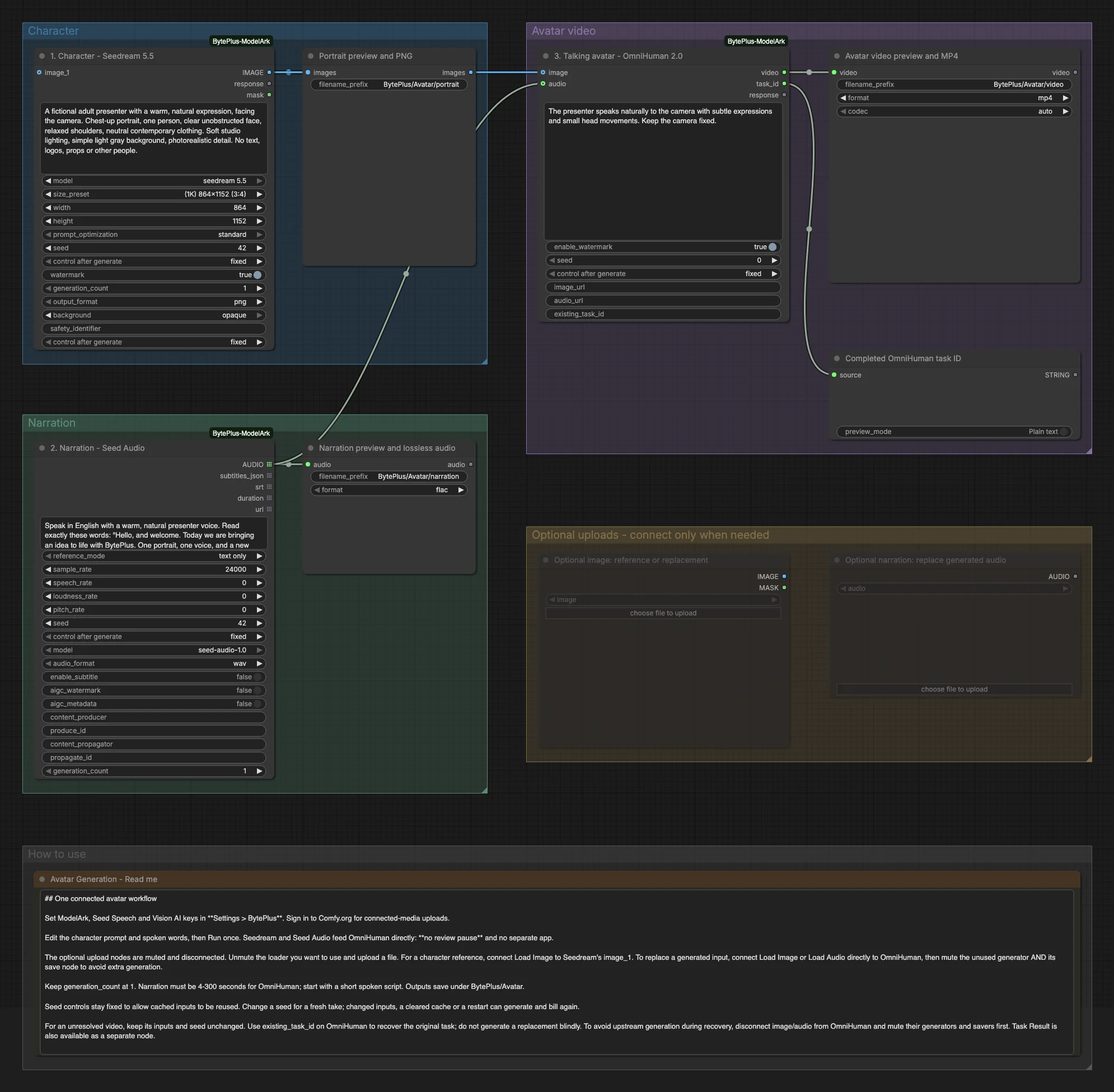
- Seedream creates one opaque 864x1152 portrait with
seedream 5.5. The image feeds both Save Image and OmniHuman. - Seed Audio speaks the narration prompt in text-only mode at 24 kHz. Its single audio result feeds both Save Audio (Advanced) and OmniHuman.
- OmniHuman uploads the connected image and audio through Comfy.org and generates the talking avatar after both inputs are ready.
- Save Video saves an MP4, and Preview as Text displays the completed OmniHuman task ID. The optional image and audio loaders are muted and disconnected until you choose to use them.
Run it
Section titled “Run it”- Set your ModelArk, Seed Speech and Vision AI keys in Settings > BytePlus. These are separate credentials; see API keys.
- Sign in to Comfy.org for connected-media uploads. Open Avatar Generation in the template browser under BytePlus, or import the workflow file above.
- Edit the portrait prompt and the quoted spoken words in Seed Audio. Keep
generation_countat1on both generation nodes. - Press Run. Preview the saved image, listen to the narration, and play the resulting video on the canvas. Files are stored under
output/BytePlus/Avatar/. - To use a character reference, unmute the optional Load Image node, upload a file, and connect
IMAGEto Seedream’simage_1socket. For an existing portrait or narration, unmute and connect the corresponding loader directly to OmniHuman instead; mute both the unused generator and its save node to avoid generating an unused input.
Review inputs before making the video
In frontends with Queue Selected Output Nodes, select the save nodes you want to run and use that command, or the play action in the node-selection toolbar. Selecting nodes and pressing the normal Run button does not restrict the workflow.
| Select these outputs | What runs |
|---|---|
| The portrait’s Save Image | Seedream and its image saver. |
| The narration’s Save Audio (Advanced) | Seed Audio and its audio saver. |
| Both image and audio savers | Both preparation branches, without OmniHuman. |
| Save Video | OmniHuman and any required upstream nodes whose results are not cached. |
Selected-output execution still includes required upstream dependencies. It does not mean “run only this one node”, and it does not guarantee that selecting Save Video avoids another image or audio request.
To reuse reviewed media without any image or audio generation, load the saved portrait and narration into the optional loaders, unmute them, and connect them directly to OmniHuman. Mute both original generators and their save nodes, then run Save Video. This also works with the normal Run button when selected-output execution is unavailable.
Settings worth changing
Section titled “Settings worth changing”- Character prompt and size: describe one clearly visible person facing the camera. Change the Seedream size preset to choose a square or vertical portrait.
- Narration prompt: describe the voice and state the exact words to speak. The avatar video follows the audio duration; trim or regenerate the audio to change its length. OmniHuman requires 4-300 seconds of audio, while Seed Audio generates clips up to 120 seconds.
- OmniHuman prompt: describe subtle expression, movement and camera guidance, not the spoken script.
- Seeds: the controls are fixed so unchanged inputs can reuse a cached result. Change the relevant seed for a fresh portrait, narration or completed avatar take. Keep inputs and seeds unchanged while a video task is unresolved.
- Watermark: image and video watermarks are enabled. Change their respective settings when appropriate.
Example result
Section titled “Example result”The default prompts describe a fictional presenter welcoming the viewer to a BytePlus demonstration. Your run produces a PNG portrait, lossless FLAC narration, and an MP4 avatar video. All three are available from the save nodes, so you can inspect or reuse individual assets.
Time and cost
Section titled “Time and cost”The full pipeline makes one image request, one narration request and one avatar-video request when no cached results are available. Runtime depends on the selected image size, narration length and provider queue. The disconnected upload nodes have no generation cost.
Fixed seed controls allow cached inputs to be reused within a ComfyUI session; they do not guarantee free reruns after a restart, cache clear or input change. Muting only an unused generator is not enough if its save node still requests its output.
For an unresolved avatar, retain the original task ID and use OmniHuman Task Result, or set existing_task_id on OmniHuman. To recover without running upstream generation, disconnect its image/audio inputs and mute the original generators and their save nodes first. Interruption stops local waiting, not remote processing; do not start replacement work merely because a request was interrupted.
Related
Section titled “Related”- Nodes: Seedream, Seed Audio, OmniHuman.
- Existing-task recovery: OmniHuman Task Result.
- Another connected pipeline: Text to Image to Video.