

Seedream
- Template
- Seedream, in the ComfyUI template browser under BytePlus
- Workflow file
- Seedream.json
- BytePlus nodes
- Seedream 4.5 & 5.0
- Keys needed
- ModelArk API key
- Also uses
- Load Image, Save Image (built into ComfyUI)
What it makes
Section titled “What it makes”One image. The template sends a reference picture (the ComfyUI logo) and a prompt to Seedream 5.0 Pro, which turns the logo into a glossy 3D badge on a white studio background. Swap the picture and the prompt to restyle anything of your own.
The workflow
Section titled “The workflow”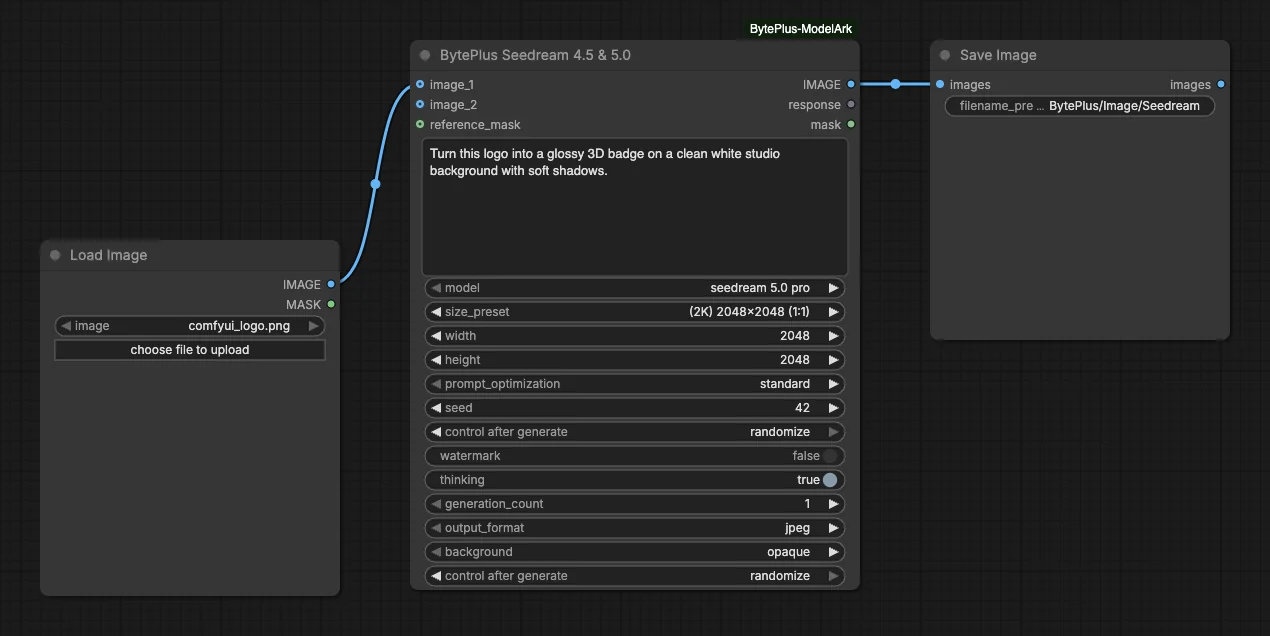
- Load Image supplies the reference picture.
- Seedream 4.5 & 5.0 receives it as
image_1together with the prompt and creates the new image. - Save Image keeps the result in the ComfyUI output folder.
Run it
Section titled “Run it”- Add your ModelArk API key in Settings → BytePlus if you have not yet (API keys).
- Open the template browser and choose Seedream under BytePlus.
- Press Run. The picture appears in Save Image when the model finishes.
Settings worth changing
Section titled “Settings worth changing”- Prompt: describe the result you want. With a reference image, say what to keep and what to change.
- Reference image: pick another file in Load Image, or delete the node to generate from the prompt alone.
size_preset: choose another ratio or resolution, for example a 16:9 size for a banner.model: switch toseedream 5.0 flashor another Seedream model. Each model option shows its own inputs.
Example result
Section titled “Example result”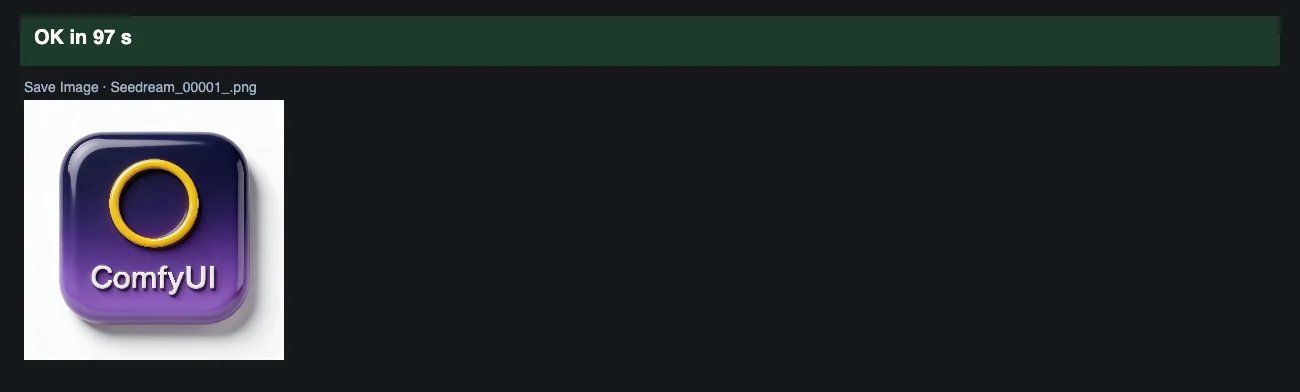
Time and cost
Section titled “Time and cost”The node bills once per generated image. The seed control is set to randomize, so every run asks again and bills again. Set it to fixed and ComfyUI reuses the cached result of an unchanged workflow without billing.
Related
Section titled “Related”- Node: Seedream 4.5 & 5.0
- Next step: Text to Image to Video turns a Seedream image into a clip.