

Storyboard Grid
- Template
- Storyboard Grid, in the ComfyUI template browser under BytePlus
- Workflow file
- Storyboard Grid.json
- BytePlus nodes
- BytePlus LLM, Seedream 4.5 & 5.0
- Keys needed
- ModelArk API key
- Also uses
- MarkdownNote, Preview as Text, Save Image, Text (Multiline) (built into ComfyUI)
What it makes
Section titled “What it makes”One image that holds a whole storyboard: numbered panels in a grid, drawn as rough pencil sketches. It is for deciding staging and shot order before you spend on video. You write the scene as a list of beats. The BytePlus LLM node turns them into a grid prompt, and Seedream paints it. The template tells a six-panel scene about a pirate captain and a spinning compass.
The workflow
Section titled “The workflow”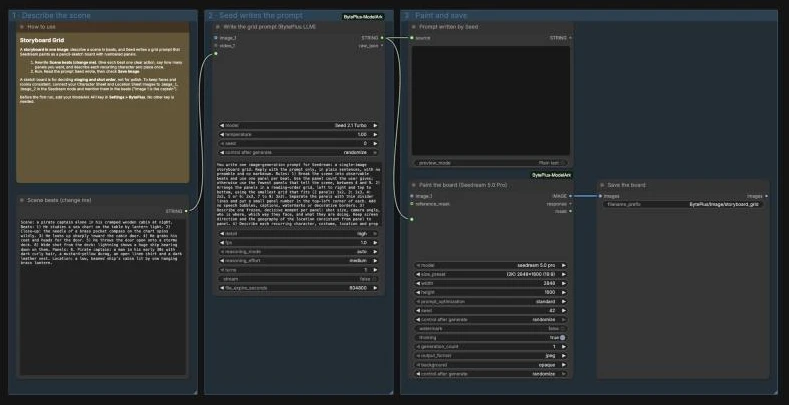
- Scene beats (change me) holds the scene: one clear action per beat, the panel count, and one description of each recurring character and place.
- BytePlus LLM runs
Seed 2.1 Turbo. Itssystem_promptasks for one image prompt for a storyboard grid: one panel per beat, a reading-order grid with thin dividers and small panel numbers, one frozen moment per panel, the same words for each recurring character and place, and a pencil-sketch style. - Prompt written by Seed (Preview as Text) shows what the LLM wrote.
- Seedream 4.5 & 5.0 runs
seedream 5.0 proat(2K) 2848x1600 (16:9)with that text as the prompt. - Save Image writes the board to
BytePlus/Image/storyboard_grid.
Run it
Section titled “Run it”- Add your ModelArk API key in Settings → BytePlus if you have not yet (API keys). One key covers both nodes.
- Open the template browser and choose Storyboard Grid under BytePlus.
- Rewrite Scene beats (change me). Say how many panels you want.
- Press Run. Read the prompt Seed wrote, then check the board in Save Image.
Settings worth changing
Section titled “Settings worth changing”- Scene beats: number the beats and state the panel count, for example “Panels: 6”. Without a count, the LLM picks between 4 and 9.
system_prompt(LLM): change the style line to ask for ink, charcoal or full color instead of pencil. Keep the rules about dividers, numbers and one moment per panel.- Reference images: to keep a character or room consistent, connect a Character Sheet or Location Sheet image to
image_1orimage_2in Seedream and say in the beats what each one is. size_preset(Seedream): 16:9 suits a horizontal board. Use a vertical size for a vertical video.- A board for a video model: the panel numbers are drawn into the image. If you will use the board as a video reference, edit the
system_promptto ask for a grid without numbers.
Example result
Section titled “Example result”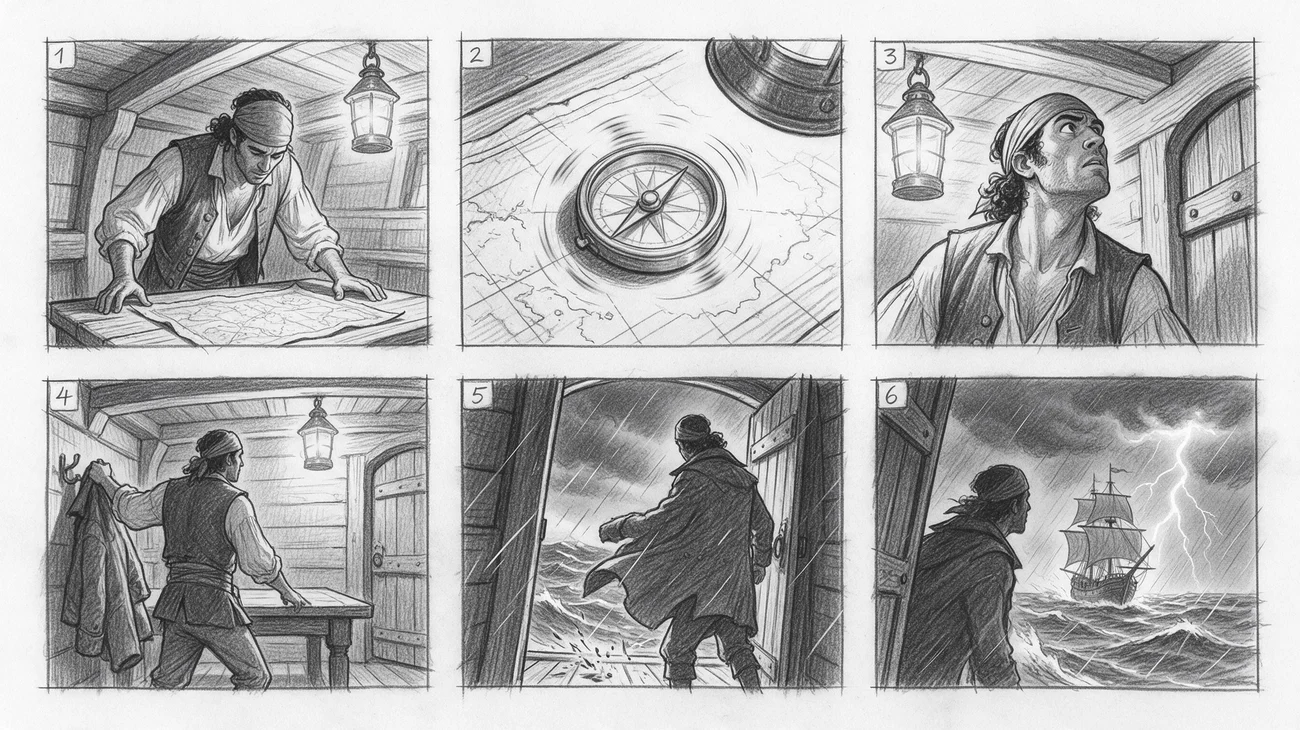
Six panels in two rows of three with thin dividers and a number in each top-left corner, following the six beats. The captain and the cabin look the same from panel to panel. It is a planning sketch, so judge staging and shot order and not surface polish. If a panel is wrong, change that beat and run again.
Time and cost
Section titled “Time and cost”Each node bills once per run: one LLM request and one Seedream image. The seed controls are set to randomize, so every run writes a new prompt, draws a new board and bills again. Set a control to fixed and ComfyUI reuses the cached result of an unchanged node without billing.
Related
Section titled “Related”- Nodes: BytePlus LLM, Seedream 4.5 & 5.0
- Next step: Character Sheet, Location Sheet and Prop Sheet make the references that keep a board consistent. Text to Image to Video animates an image.