

Generate and Enhance
- Template
- Generate and Enhance, in the ComfyUI template browser under BytePlus
- Workflow file
- Generate and Enhance.json
- BytePlus nodes
- Seedream 4.5 & 5.0, Image Quality Enhance, Seedance 2.5 Text to Video, vCube Video Enhance
- Keys needed
- ModelArk API key, AI MediaKit API key
- Also uses
- Compare Images, Save Image, Save Video (built into ComfyUI)
What it makes
Section titled “What it makes”Generated media at a higher quality than the model outputs directly. The image group makes a product photo of a steaming ceramic coffee mug with Seedream 5.0 Pro and doubles its size with Image Quality Enhance. The video group, off by default, makes a 5-second clip of the same mug with Seedance and upscales it to 1080p with vCube Video Enhance.
The workflow
Section titled “The workflow”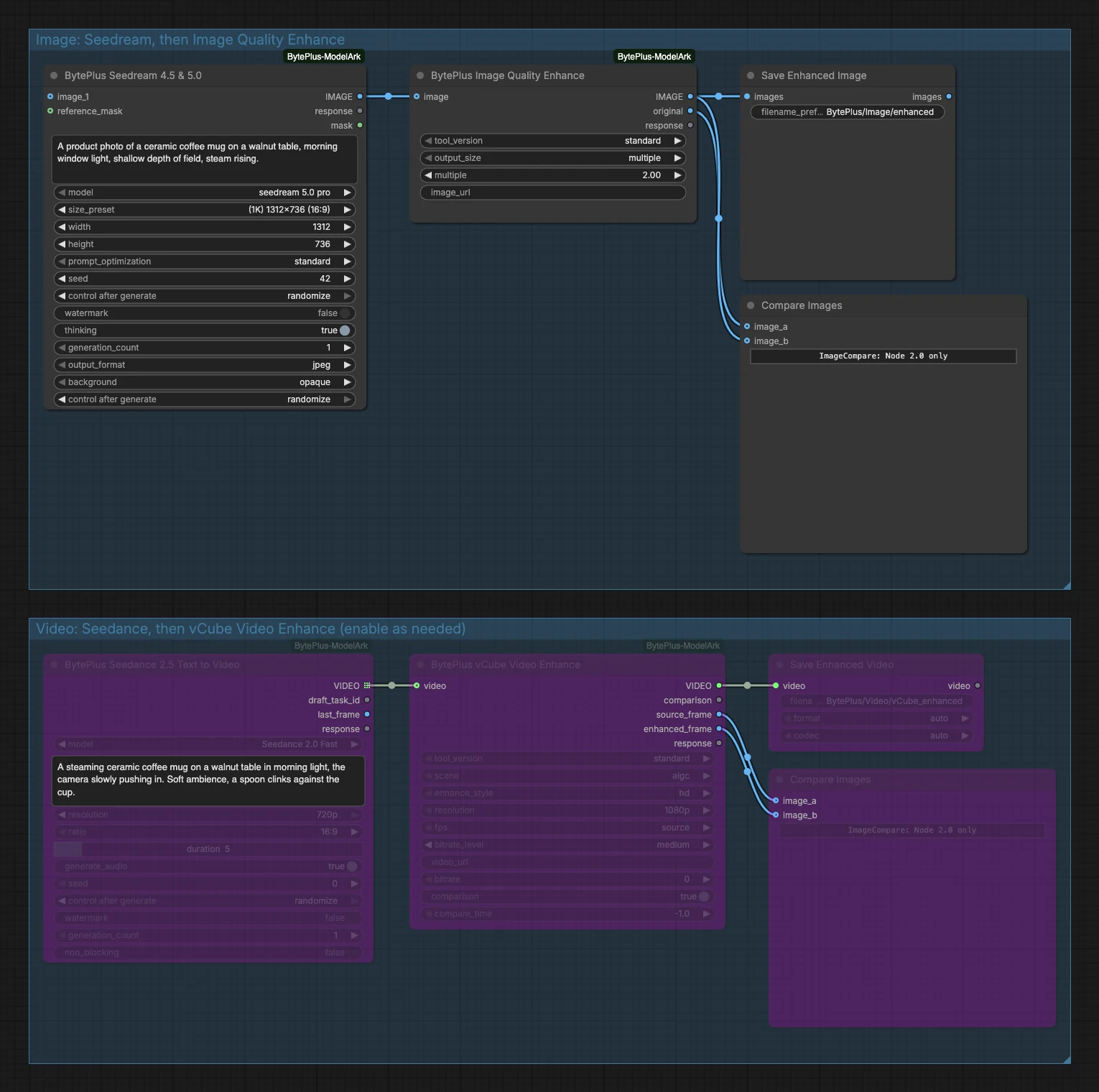
- Seedream 4.5 & 5.0 makes the picture with
seedream 5.0 proat 1312x736 (16:9) from the prompt “A product photo of a ceramic coffee mug on a walnut table, morning window light…”. - Image Quality Enhance takes it with
tool_versionstandardandmultiple2.00, giving 2624x1472. - Save Enhanced Image writes the result, and Compare Images shows the
originaloutput against the enhanced image in a slider (Nodes 2.0 only). - Seedance 2.5 Text to Video (video group) makes the clip with the model Seedance 2.0 Fast at 720p, 16:9, 5 seconds, from a prompt about the mug and a clinking spoon.
- vCube Video Enhance (video group) upscales it with
standard, sceneaigc, stylehd, resolution 1080p and the source frame rate. Save Enhanced Video keeps the video, and thesource_frameandenhanced_frameoutputs feed a second Compare Images.
Run it
Section titled “Run it”- Add your ModelArk API key and your AI MediaKit API key in Settings → BytePlus if you have not yet (API keys). The template needs both, and they are separate keys.
- Log in to your Comfy.org account in ComfyUI. The enhance nodes upload the generated image or video to Comfy.org storage first, because AI MediaKit only takes links.
- Open the template browser and choose Generate and Enhance under BytePlus.
- Press Run. The image group runs and the enhanced picture appears in Save Enhanced Image.
- For the video, set the video group to Always and run again.
Settings worth changing
Section titled “Settings worth changing”- Seedream prompt and
size_preset: describe your own subject. A larger preset gives a larger enhanced picture. - Enhance
multiple: 2.00 is set.standardallows 1 to 8;professionalandmaxgo higher and add texture. - Seedance
model: the video group uses Seedance 2.0 Fast. Pick another model for different speed or quality. - vCube
resolution: 1080p is set. Change it, orfps, to change the output. - Video group: it is bypassed in the template. Set the group to Always to run it, or leave it off if you only need the image.
Example result
Section titled “Example result”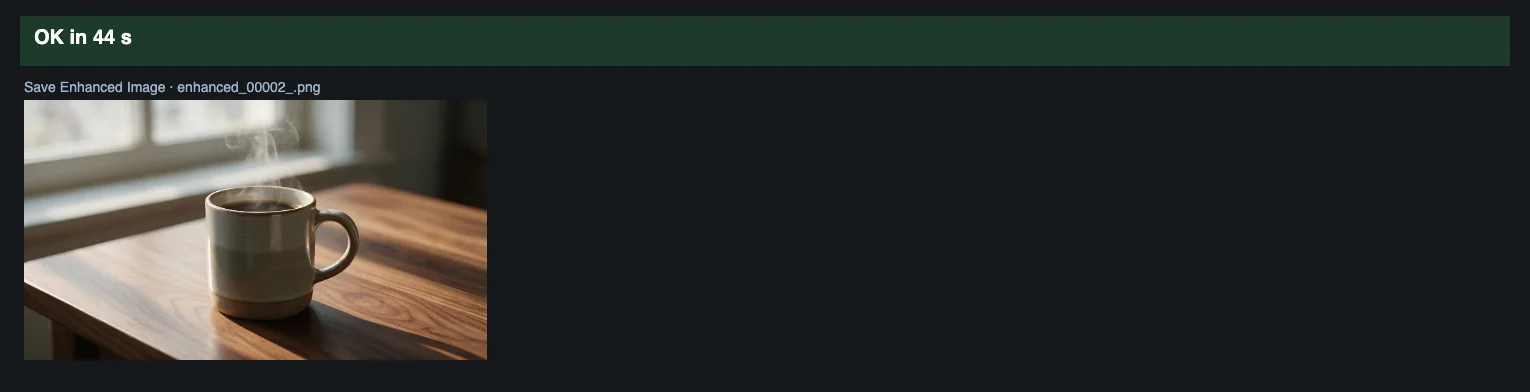
Time and cost
Section titled “Time and cost”ModelArk bills the Seedream image and the Seedance video, and AI MediaKit bills each enhancement. Groups that are bypassed do not run and do not bill. The seed controls are set to randomize, so every run makes new results and bills again. Set a control to fixed and ComfyUI reuses the cached result of an unchanged node without billing.
Related
Section titled “Related”- Nodes: Seedream 4.5 & 5.0, Image Quality Enhance, Seedance 2.5 Text to Video, vCube Video Enhance
- Next step: vCube Video Enhance enhances a video you already have.