

vCube Video Enhance
- Template
- vCube Video Enhance, in the ComfyUI template browser under BytePlus
- Workflow file
- vCube Video Enhance.json
- BytePlus nodes
- vCube Video Enhance
- Keys needed
- AI MediaKit API key
- Also uses
- Compare Images, Load Video, Save Video (built into ComfyUI)
What it makes
Section titled “What it makes”Two videos and a comparison slider. The template sends a video you pick to vCube, which restores and upscales it to 1080p. You get the enhanced video, a second video in which a divider sweeps across the frame to show before and after, and a pair of still frames for a side-by-side slider.
The workflow
Section titled “The workflow”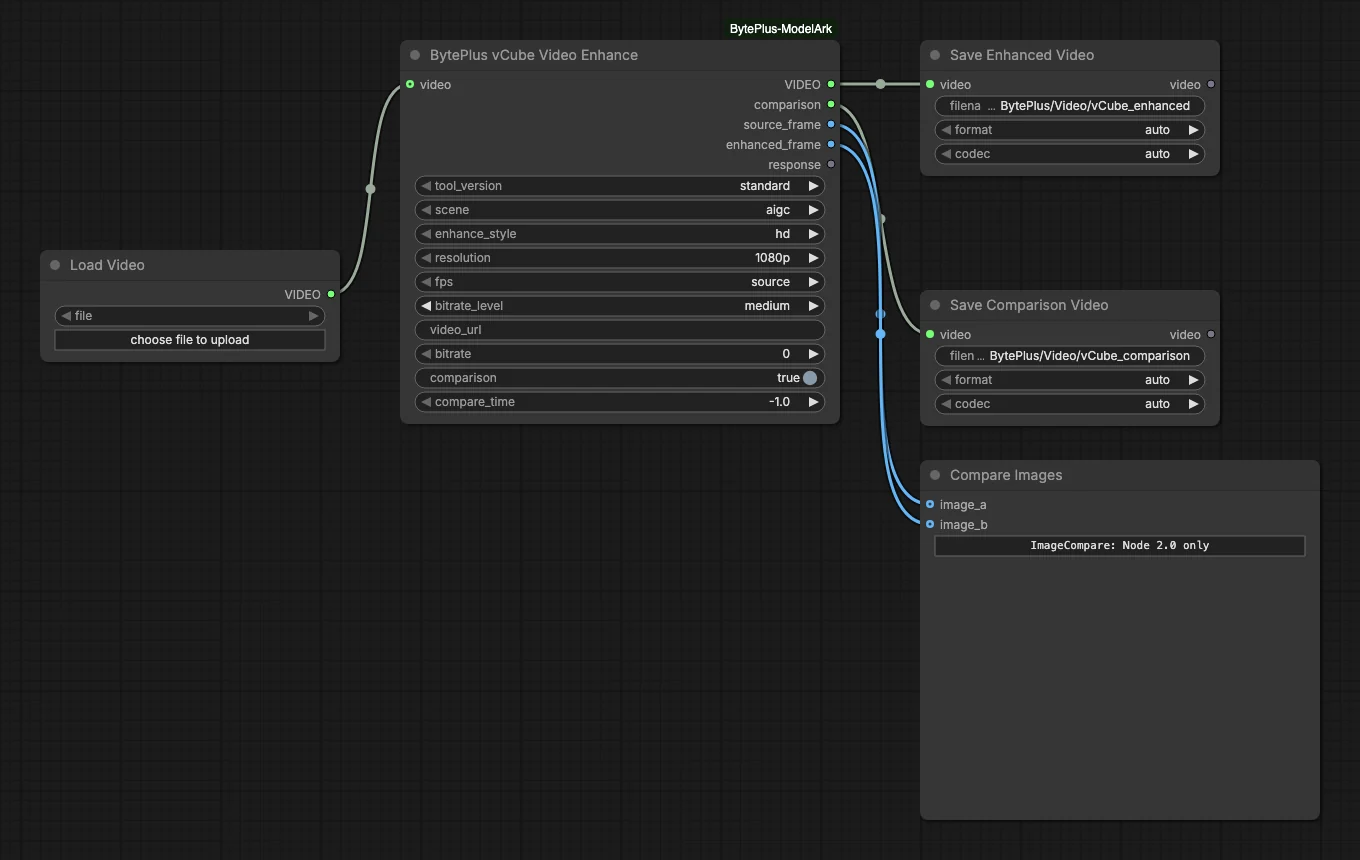
- Load Video supplies the source video. The template ships with no file chosen, so pick one with choose file to upload.
- vCube Video Enhance uses
tool_versionstandardwithsceneaigcandenhance_stylehd,resolution1080p,fpssourceandbitrate_levelmedium.comparisonis on, so it also builds the comparison outputs. - Save Enhanced Video keeps the enhanced video.
- Save Comparison Video keeps the video with the sweeping divider.
- Compare Images receives
source_frameandenhanced_frame. It is the slider view and works in Nodes 2.0 only.
Run it
Section titled “Run it”- Add your AI MediaKit API key in Settings → BytePlus if you have not yet (API keys). This is a separate key from the ModelArk key.
- Log in to your Comfy.org account in ComfyUI. A connected video is uploaded to Comfy.org storage first, because AI MediaKit only takes links. To skip that, remove Load Video and set
video_urlon the vCube node to a public link instead. - Open the template browser and choose vCube Video Enhance under BytePlus.
- In Load Video, pick a video of your own.
- Press Run. The two videos appear in the Save Video nodes and the frames in Compare Images when the task finishes.
Settings worth changing
Section titled “Settings worth changing”scene: match the footage.aigcis for AI-generated video,commonfor general video,ugcfor compressed phone clips,short_seriesfor drama with faces andold_filmfor scratched or flickering archive footage.enhance_style:hdsharpens more;naturalis softer.resolution: choose 720p, 2k, 4k, 8k,sourceorcustom. The source video must be at most 2560x1440.fps: a higher rate than the source adds interpolated frames. The node tooltip says rates above 30 fps cost 2x and above 60 fps 4x.tool_version:professionalrestores more thoroughly. The tooltip says it takes about 3x longer and costs 10x more thanstandard.
Example result
Section titled “Example result”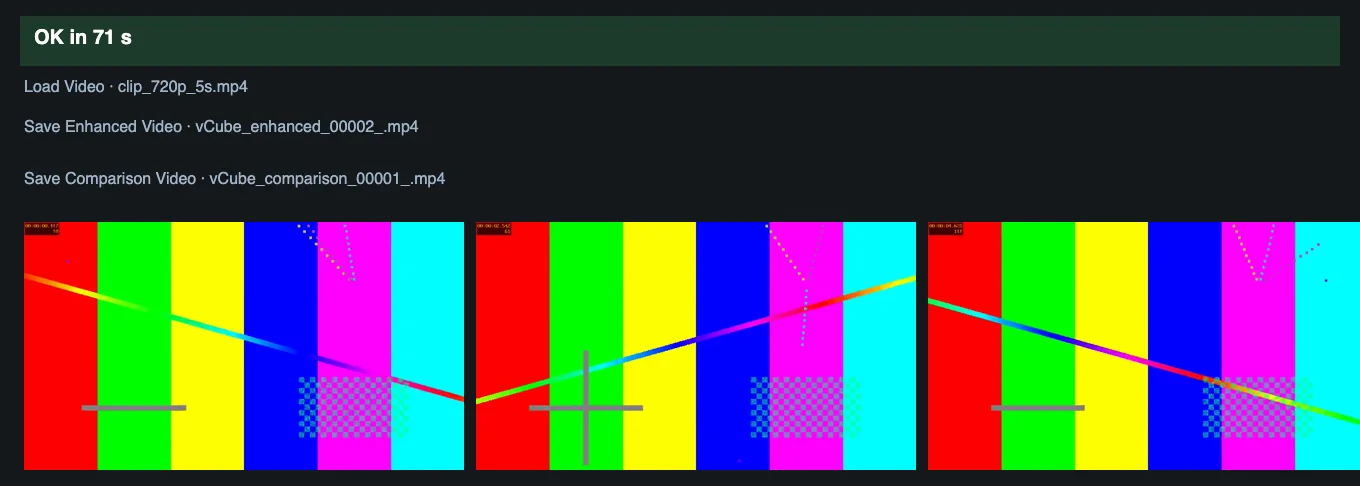
Time and cost
Section titled “Time and cost”The task bills on AI MediaKit once per run, and the price depends on the settings above. Running again with an unchanged workflow and the same video reuses ComfyUI’s cached result and does not bill. The comparison is built on your computer after the download, so it adds no MediaKit charge.
Related
Section titled “Related”- Node: vCube Video Enhance
- Next step: Video Smoothness Enhance repairs stutter without changing the resolution.