

Product Lookbook
- Template
- Product Lookbook, in the ComfyUI template browser under BytePlus
- Workflow file
- Product Lookbook.json
- BytePlus nodes
- Seedream 4.5 & 5.0
- Keys needed
- ModelArk API key
- Also uses
- Load Image, MarkdownNote, Save Image (built into ComfyUI)
What it makes
Section titled “What it makes”Four lifestyle photos of the same product in four different places, from one request. It is for shops that need a set of consistent pictures for a product page or a catalogue. The idea: Seedream can return several related images from one prompt, so you describe all the scenes together, number them, and attach one reference photo to keep the product the same.
The workflow
Section titled “The workflow”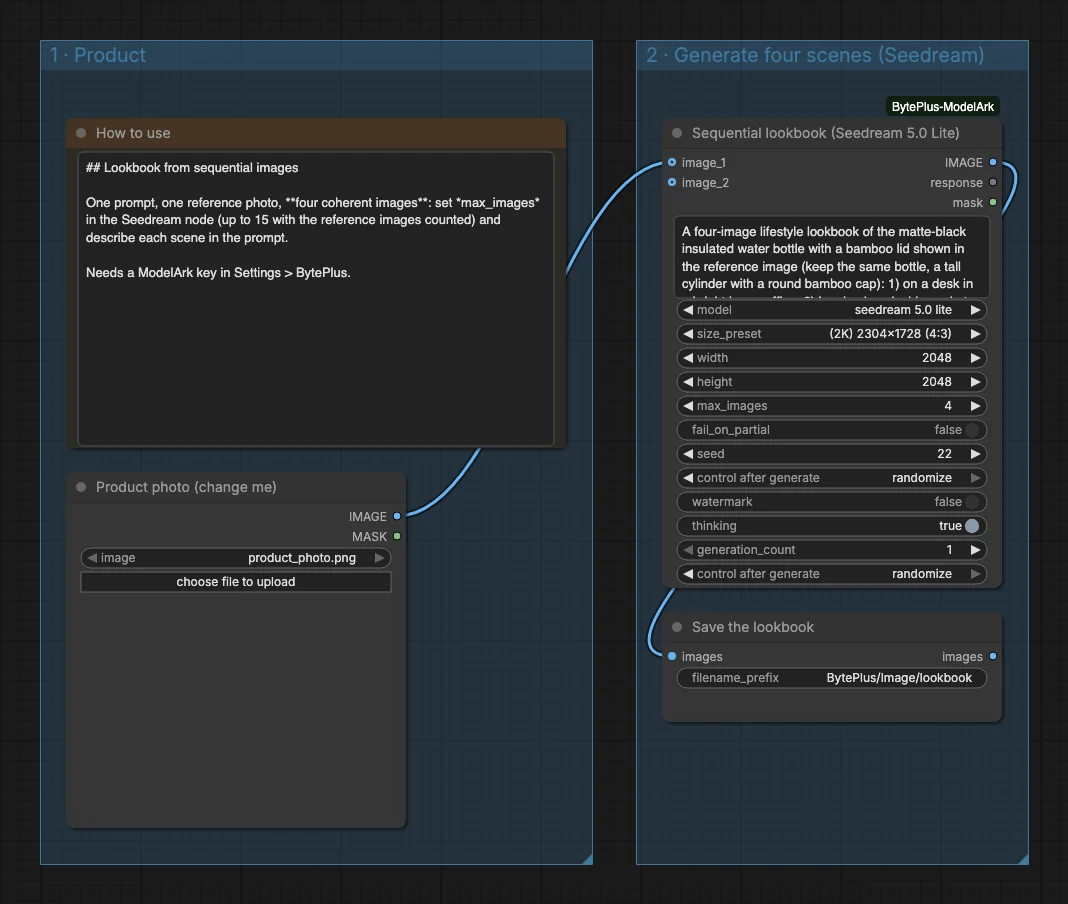
- Load Image (titled “Product photo (change me)”) supplies the product photo. It points to a placeholder file,
product_photo.png, so pick your own image. - Seedream 4.5 & 5.0 (
seedream 5.0 lite, titled “Sequential lookbook”) receives the photo asimage_1. The prompt asks for a four-image lookbook with numbered scenes: a home office desk, a backpack on a hiking trail, a cafe table at golden hour and a gym bench. The size is 2304x1728 (4:3) andmax_imagesis 4. - Save Image (titled “Save the lookbook”) writes all four pictures to
BytePlus/Image/lookbook.
Run it
Section titled “Run it”- Add your ModelArk API key in Settings → BytePlus if you have not yet (API keys). This template needs no other key.
- Open the template browser and choose Product Lookbook under BytePlus.
- In Product photo (change me) choose your own image, then rewrite the prompt: describe your product in words and replace the four numbered scenes.
- Press Run. The four pictures arrive together in Save the lookbook.
Settings worth changing
Section titled “Settings worth changing”- Prompt: keep the pattern “same product in every image” plus a numbered list of scenes, and say what must stay the same, such as the shape and the cap.
max_images: match it to the number of scenes you wrote. The template note says up to 15 in total, with reference images counted.size_preset: choose a ratio for where the pictures will be used, such as 1:1 or 3:4.model:max_imagesexists onseedream 5.0 liteand on the 4.5 and 4.0 models, but not on 5.0 Pro or Flash. Keep one of those three for a sequential lookbook.fail_on_partial: off here, so you still get the images that succeeded if one fails.
Example result
Section titled “Example result”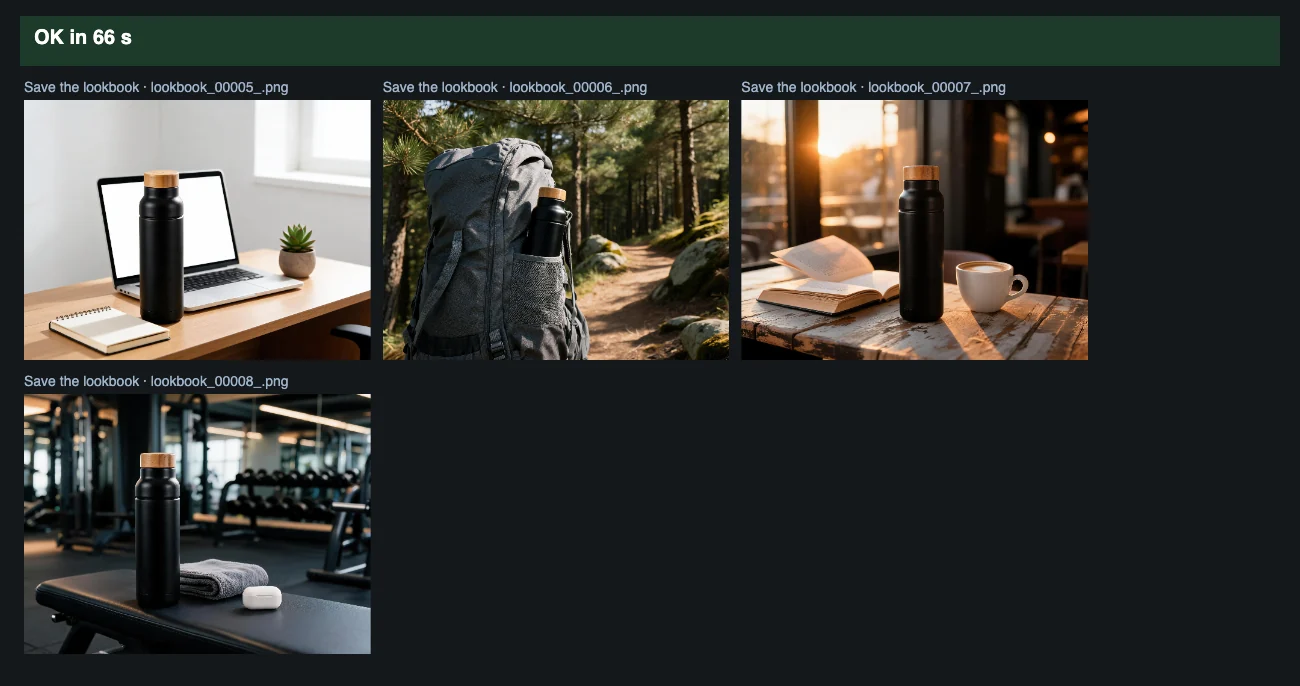
Time and cost
Section titled “Time and cost”The node bills on your ModelArk account for the images it generates. The seed control is set to randomize, so every run makes four new images and bills again. Set it to fixed and ComfyUI reuses the cached result of an unchanged workflow without billing.
Related
Section titled “Related”- Node: Seedream 4.5 & 5.0
- Next step: Product Ad in One Click turns a product idea into an animated ad.