

Prop Sheet
- Template
- Prop Sheet, in the ComfyUI template browser under BytePlus
- Workflow file
- Prop Sheet.json
- BytePlus nodes
- Seedream 4.5 & 5.0
- Keys needed
- ModelArk API key
- Also uses
- Format Text, MarkdownNote, Preview as Text, Save Image, Text (Multiline) (built into ComfyUI)
What it makes
Section titled “What it makes”One image of a single object on a seamless background, shown whole and centered with room around it. It is for objects that a character holds, that appear in several shots or that the story depends on. The template makes an antique brass pocket compass, open, on white. The background is plain on purpose, so that it does not leak into later images or videos.
The workflow
Section titled “The workflow”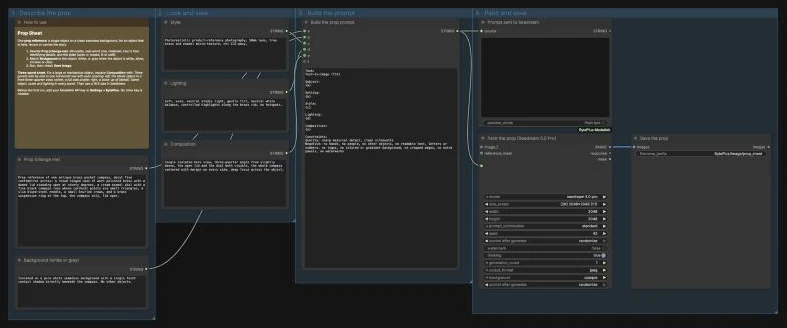
- Prop (change me) describes the object: its shape, real-world size in words, materials, two to four identifying details and its state, such as open or closed.
- Background (white or gray) sets the backdrop. White is the default. Use gray when the object is white, silver, chrome or clear, because its outline would be lost on white.
- Style, Lighting and Composition set the photographic look, the light and the view. The default view is one three-quarter hero view.
- Build the prop prompt (Format Text, a ComfyUI core node) puts the five texts into one prompt and adds the fixed quality line and exclusions. Prompt sent to Seedream shows it.
- Seedream 4.5 & 5.0 runs
seedream 5.0 proat(2K) 2048x2048 (1:1), and Save Image writes the result toBytePlus/Image/prop_sheet.
Run it
Section titled “Run it”- Add your ModelArk API key in Settings → BytePlus if you have not yet (API keys). This template needs no other key.
- Open the template browser and choose Prop Sheet under BytePlus.
- Rewrite Prop (change me) and make the object name in Background match it.
- Press Run. Check that the whole object is in frame and that nothing looks like writing.
Settings worth changing
Section titled “Settings worth changing”- Prop (change me): start with “Prop reference of one” and the object, and say how many there are. Describe one state only.
- Background (white or gray): keep the faint contact shadow in the sentence, and change
whitetolight-grayfor pale or shiny objects. - Composition: for a large or mechanical object, use three panels in one row instead: a three-quarter view, a side profile and a close-up of one detail. The note in the template has the wording. Choose a 16:9
size_presetfor it. - Text on the object: the fixed exclusions ask for no readable text, letters or numbers, because invented lettering tends to look wrong. If a label matters, add it afterwards or use the real product photo.
seed: set it tofixedto rerun the same image without billing again.
Example result
Section titled “Example result”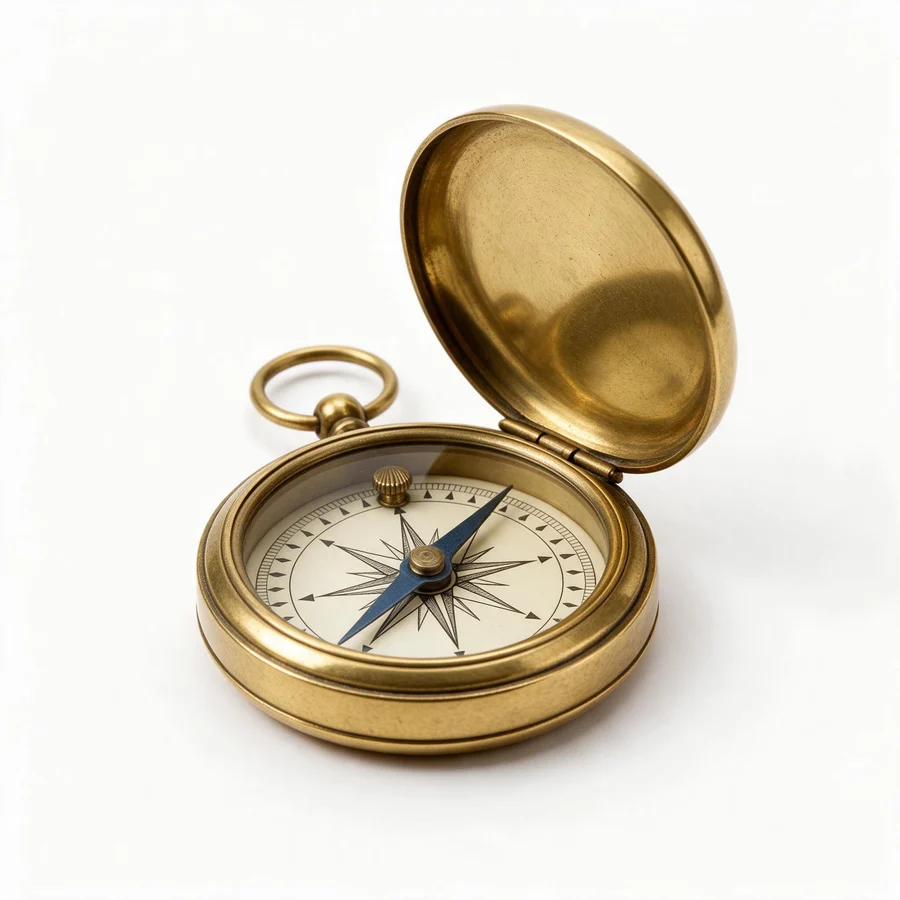
One open brass compass, whole and centered on white, with a ring at the top, a small crown, a blue needle and a cream dial whose cardinal points are small triangles instead of letters. Check that the shape and details are right, that nothing is cropped, and that no stray marks look like writing. Make a separate sheet for each state the object needs on camera.
Time and cost
Section titled “Time and cost”The template bills one Seedream image per run. The seed control is set to randomize, so every run paints a new image and bills again. Set it to fixed and ComfyUI reuses the cached result of an unchanged workflow without billing.
Related
Section titled “Related”- Node: Seedream 4.5 & 5.0
- Next step: Character Sheet makes the character who holds the prop. Storyboard Grid places both in a scene.