

Video Smoothness Enhance
- Template
- Video Smoothness Enhance, in the ComfyUI template browser under BytePlus
- Workflow file
- Video Smoothness Enhance.json
- BytePlus nodes
- Video Smoothness Enhance
- Keys needed
- AI MediaKit API key
- Also uses
- Load Video, Preview as Text, Save Video (built into ComfyUI)
What it makes
Section titled “What it makes”A smoother copy of a video you pick. The template asks MediaKit to find places where the motion jumps (periodic stutter) and to fill them with generated in-between frames, and to remove repeated frames. The resolution stays the same. It is made for Seedance clips with occasional stutter, and also suits low frame rate or re-encoded video and screen or game recordings.
The workflow
Section titled “The workflow”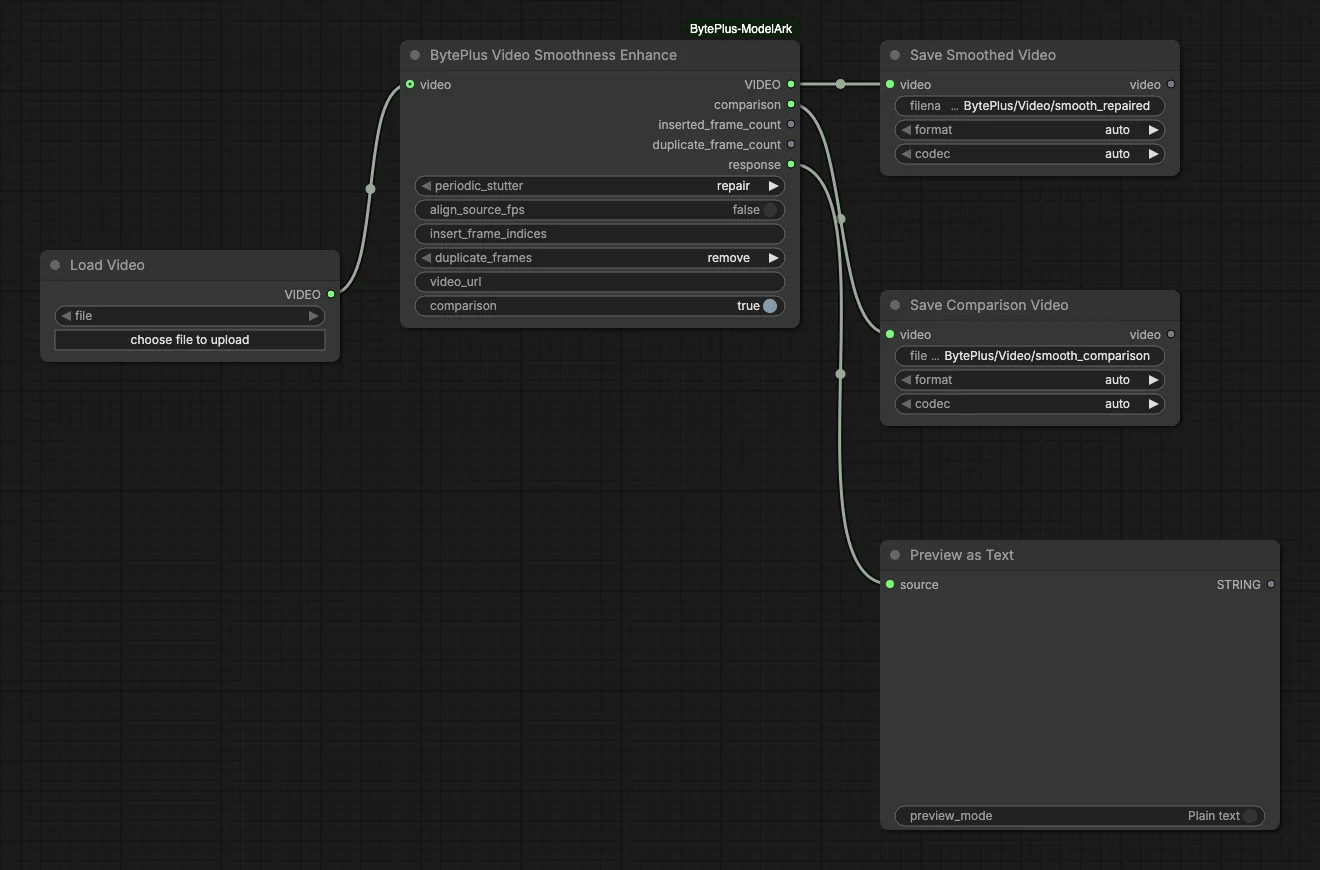
- Load Video supplies the source video. The template ships with no file chosen, so pick one with choose file to upload.
- Video Smoothness Enhance has
periodic_stutteronrepair,duplicate_framesonremoveandcomparisonon. - Save Smoothed Video keeps the repaired video.
- Save Comparison Video keeps a video with the source on the left and the repaired clip on the right.
- Preview as Text shows the
response, the MediaKit task as JSON, which includes how many frames were inserted and how many duplicates were found.
Run it
Section titled “Run it”- Add your AI MediaKit API key in Settings → BytePlus if you have not yet (API keys). This is a separate key from the ModelArk key.
- Log in to your Comfy.org account in ComfyUI. A connected video is uploaded to Comfy.org storage first, because AI MediaKit only takes links. To skip that, remove Load Video and set
video_urlon the node to a public link instead. - Open the template browser and choose Video Smoothness Enhance under BytePlus.
- In Load Video, pick a video of your own.
- Press Run. The result appears in the Save Video nodes and the text preview when the task finishes.
Settings worth changing
Section titled “Settings worth changing”periodic_stutter:repairgenerates in-between frames.detect onlycounts the stutter points without changing the video.align_source_fps: appears withrepair. Turn it on to keep the source frame rate, frame count and duration. The repair is best with it off.insert_frame_indices: appears withrepair. Add stutter points the detector missed as zero-based frame numbers, for example80, 120.duplicate_frames:removedrops consecutive identical frames;detect onlyjust counts them.- Length: the video must be at most 4K, and at most 35 seconds while a repair is on.
Example result
Section titled “Example result”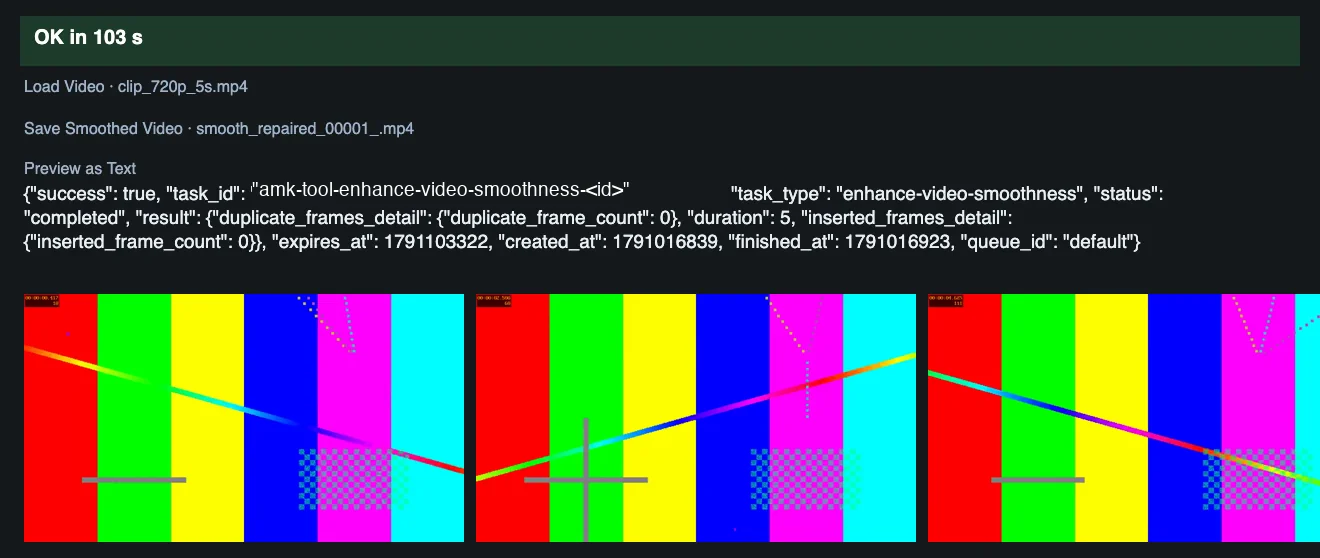
The example clip has no stutter, so the response reports 0 inserted frames and 0 duplicate frames. When nothing needs repair, MediaKit returns no new video and the node passes your source video through, and the comparison output is skipped.
Time and cost
Section titled “Time and cost”The task bills on AI MediaKit once per run. Running again with an unchanged workflow and the same video reuses ComfyUI’s cached result and does not bill.
Related
Section titled “Related”- Node: Video Smoothness Enhance
- Next step: vCube Video Enhance raises the resolution and cleans up the picture.