

Image Quality Enhance
- Template
- Image Quality Enhance, in the ComfyUI template browser under BytePlus
- Workflow file
- Image Quality Enhance.json
- BytePlus nodes
- Image Quality Enhance
- Keys needed
- AI MediaKit API key
- Also uses
- Compare Images, Load Image, Save Image (built into ComfyUI)
What it makes
Section titled “What it makes”A sharper, larger copy of a picture. The template loads an image (the ComfyUI logo) and enhances it to twice its width and height. It saves the result and also sets up a before-and-after comparison.
The workflow
Section titled “The workflow”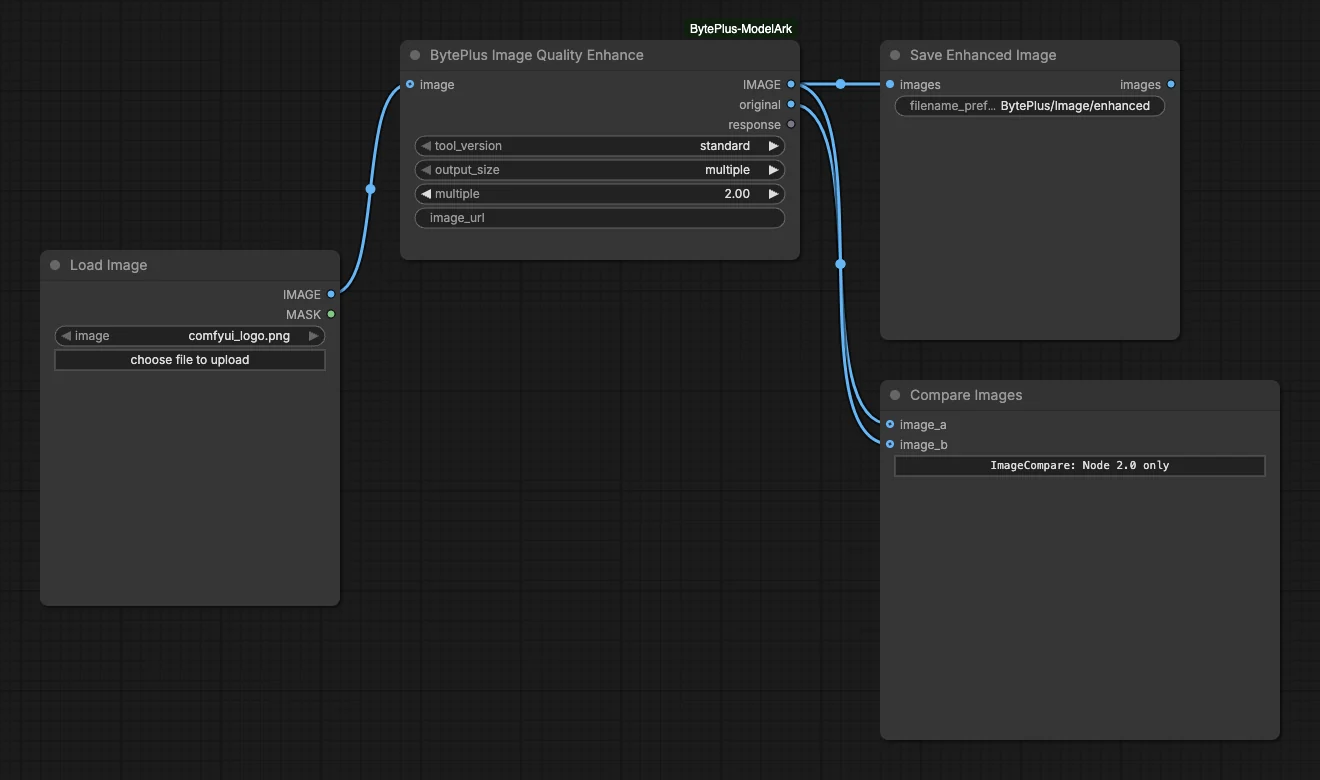
- Load Image supplies the picture to improve.
- Image Quality Enhance runs with
tool_versionset tostandard,output_sizeset tomultipleandmultipleat 2.00. Theimage_urlinput is empty because the image comes from the socket. - Save Enhanced Image writes the enhanced picture to
BytePlus/Image/enhanced. - Compare Images receives the
originaloutput asimage_aand the enhanced image asimage_b. Theoriginaloutput is the input resized to the enhanced size, so the slider lines up. Compare Images shows its slider in Nodes 2.0 only; Classic Canvas shows a note instead.
Run it
Section titled “Run it”- Add your AI MediaKit API key in Settings → BytePlus if you have not yet (API keys). This is a separate key from the ModelArk key.
- Log in to your Comfy.org account in ComfyUI. A connected image is uploaded to Comfy.org storage first, because AI MediaKit only takes links.
- Open the template browser and choose Image Quality Enhance under BytePlus.
- Press Run. The enhanced picture appears in Save Enhanced Image.
Settings worth changing
Section titled “Settings worth changing”- Image: pick your own picture in Load Image. To skip the Comfy.org upload, leave the socket empty and paste a public link into
image_url. tool_version:standardis fast clean-up for thumbnails, UGC and OCR input.professionalandmaxadd richer texture and have agenerative_enhance_modechoice. Prices differ per version.multiple: the scale factor, 1 to 8 withstandard, up to 30 withprofessionalandmax.output_size: switch totarget sizeto set a width and height in pixels instead of a factor.
Example result
Section titled “Example result”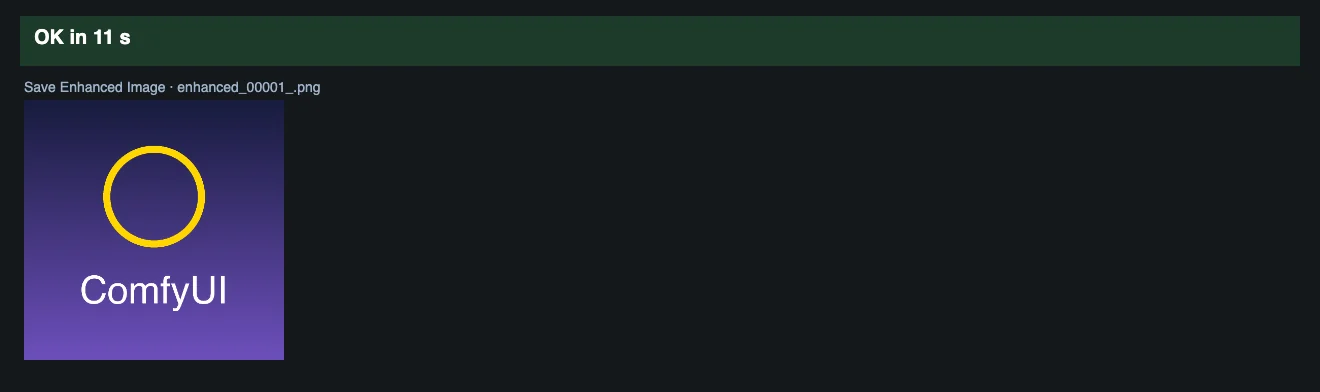
Time and cost
Section titled “Time and cost”AI MediaKit bills each enhanced image, and the price depends on tool_version. Running again with an unchanged workflow reuses ComfyUI’s cached result and does not bill.
Related
Section titled “Related”- Node: Image Quality Enhance
- Next step: Generate and Enhance makes an image with Seedream and enhances it right away.