

Image to UGC Video
- Template
- Image to UGC Video, in the ComfyUI template browser under BytePlus
- Workflow file
- Image to UGC Video.json
- BytePlus nodes
- BytePlus LLM, Seedance 2.5 Reference to Video, Seed Speech TTS
- Keys needed
- ModelArk API key, Seed Speech API key
- Also uses
- Create Video, Extract Text, Get Video Components, Load Image, MarkdownNote, Preview as Text, Save Video, Text (built into ComfyUI)
What it makes
Section titled “What it makes”One 9:16 video of about 8 seconds, in the style of a creator showing a product to their phone camera, with a spoken voiceover on top. It is for small shops and marketers who need a quick user-generated-content style ad from a single product photo. The idea: a language model looks at the photo, writes both the spoken line and the shot description, then two different services turn them into picture and sound, and ComfyUI’s own video nodes join the two.
The workflow
Section titled “The workflow”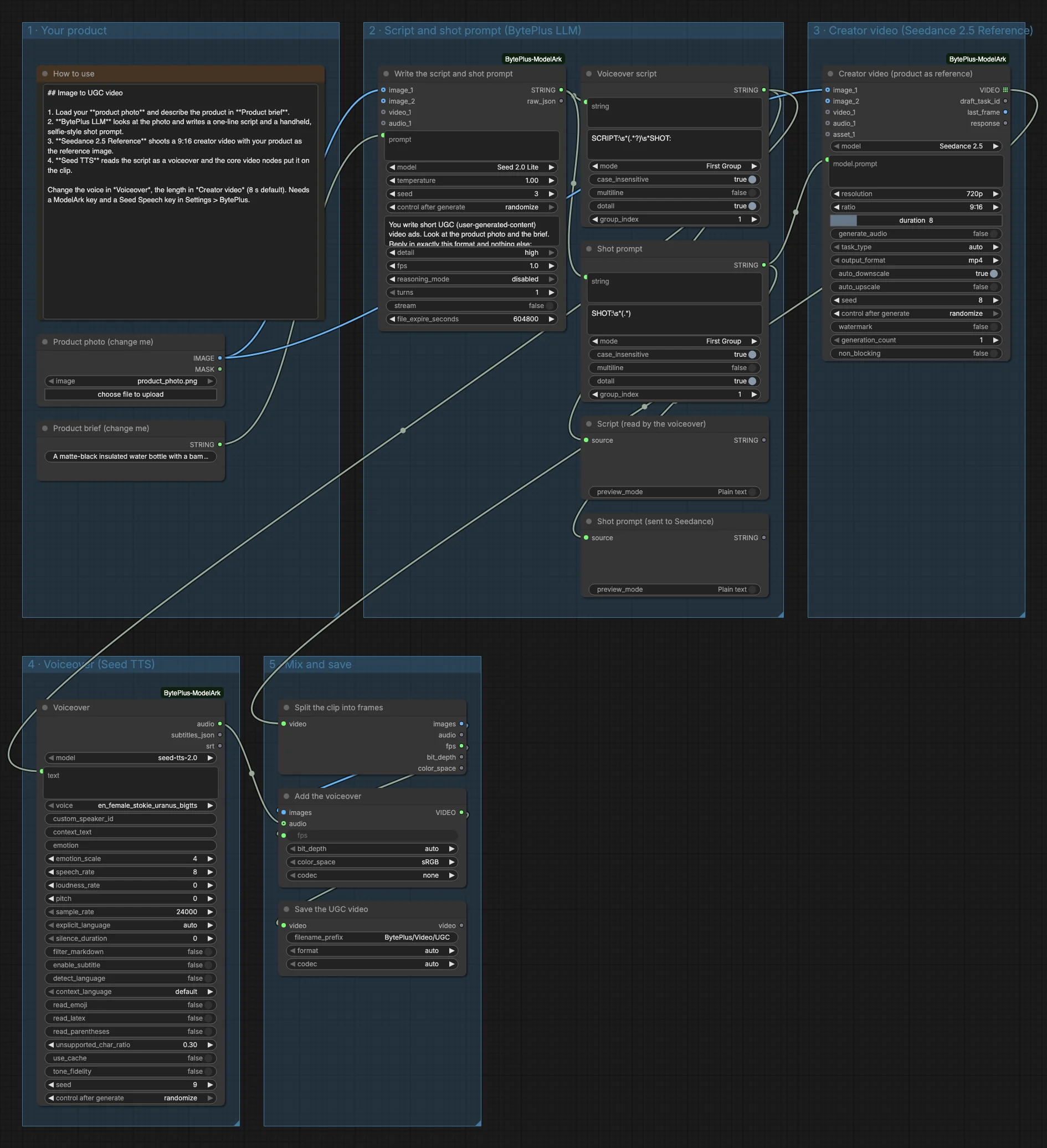
- Load Image (titled “Product photo (change me)”) and a text node with a one-line Product brief are the inputs. The brief is a matte-black insulated water bottle with a bamboo lid. The photo slot names a file,
product_photo.png, that you must replace with your own image. - BytePlus LLM (Seed 2.0 Lite) gets the photo as
image_1and the brief as its prompt. Its system prompt asks for aSCRIPT:line of 26 to 32 words and aSHOT:paragraph. - Two Extract Text nodes split the reply into the voiceover script and the shot prompt. Two Preview as Text nodes show you both.
- Seedance 2.5 Reference to Video (model Seedance 2.5) shoots the clip with the photo as
image_1and the shot prompt as its prompt: 9:16, 720p, 8 seconds, no generated audio. - Seed Speech TTS (
seed-tts-2.0, an English female voice) reads the script. - Get Video Components and Create Video put the voiceover on the clip, and Save Video writes it to
BytePlus/Video/UGC.
Run it
Section titled “Run it”- Add your ModelArk API key and your Seed Speech API key in Settings → BytePlus if you have not yet (API keys). The template needs both.
- Open the template browser and choose Image to UGC Video under BytePlus.
- In Product photo (change me) pick your own image (the template has no photo in it), and rewrite Product brief (change me) in one sentence.
- Press Run. Check the two previews first, then wait for Save the UGC video.
Settings worth changing
Section titled “Settings worth changing”- Product brief: the only text you must change. Name the material, colour and one selling point.
voicein Voiceover: pick another English voice, or changespeech_rate(the template uses 8, a little faster than normal).durationin Creator video: the template sets 8 seconds. Keep the script length in step: the system prompt asks for 26 to 32 words.- System prompt of the LLM: change the setting (a bright home by default) or the tone of the script.
generate_audioin Creator video: off here because the voiceover replaces the sound. Turn it on only if you remove the voiceover branch.
Example result
Section titled “Example result”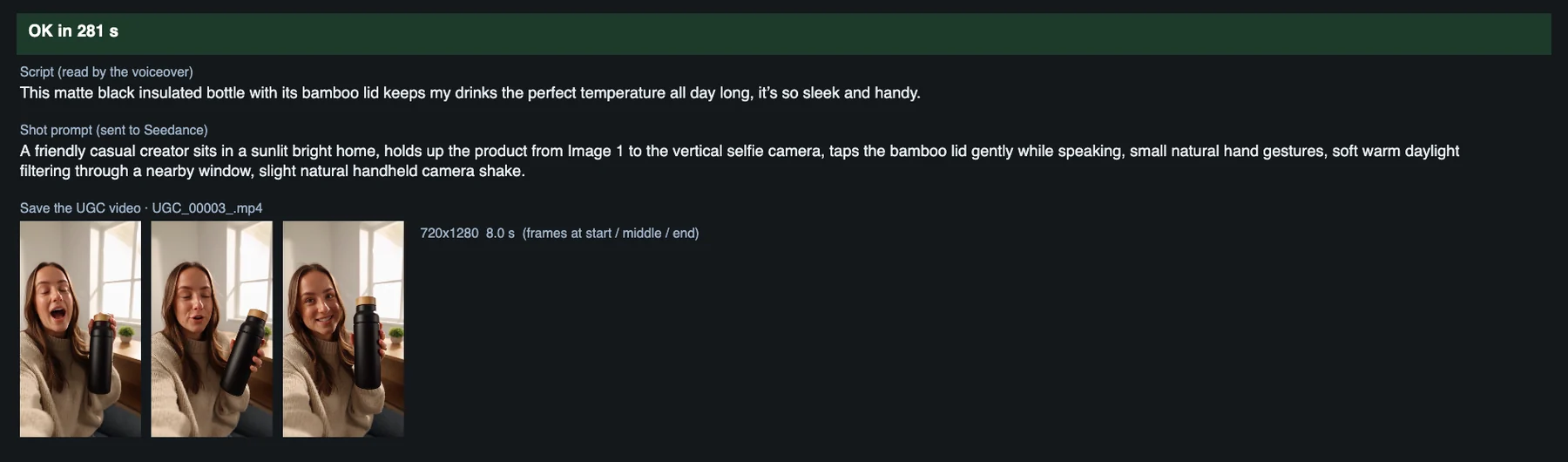
Time and cost
Section titled “Time and cost”The LLM and Seedance nodes bill on your ModelArk account and the Seed Speech TTS node bills on your Seed Speech account, once per run each. The seed controls are set to randomize, so every run makes a new script, clip and voiceover and bills again. Set a control to fixed and ComfyUI reuses the cached result of an unchanged node without billing. Nothing needs a Comfy.org login here: the photo goes to the services as part of the request.
Related
Section titled “Related”- Nodes: BytePlus LLM, Seedance 2.5 Reference to Video, Seed Speech TTS
- Next step: Product Ad in One Click starts from a one-line brief instead of a photo.