

Virtual Portrait - New Asset
- Template
- Virtual Portrait - New Asset, in the ComfyUI template browser under BytePlus
- Workflow file
- Virtual Portrait - New Asset.json
- BytePlus nodes
- Create Image Asset, Seedance 2.5 Reference to Video
- Keys needed
- ModelArk API key, IAM access key and secret key
- Also uses
- Load Image, Preview as Text, Save Video (built into ComfyUI)
What it makes
Section titled “What it makes”One 5 second video, plus a new asset in your library. The template uploads a picture as a virtual portrait named “My portrait” and passes it to Seedance 2.5 Reference to Video as asset1, with the prompt “asset1 walks along a beach at sunset, turns toward the camera and smiles. Waves, soft wind, cinematic lighting.” The shipped picture is the ComfyUI logo, so replace it with your own portrait image.
The workflow
Section titled “The workflow”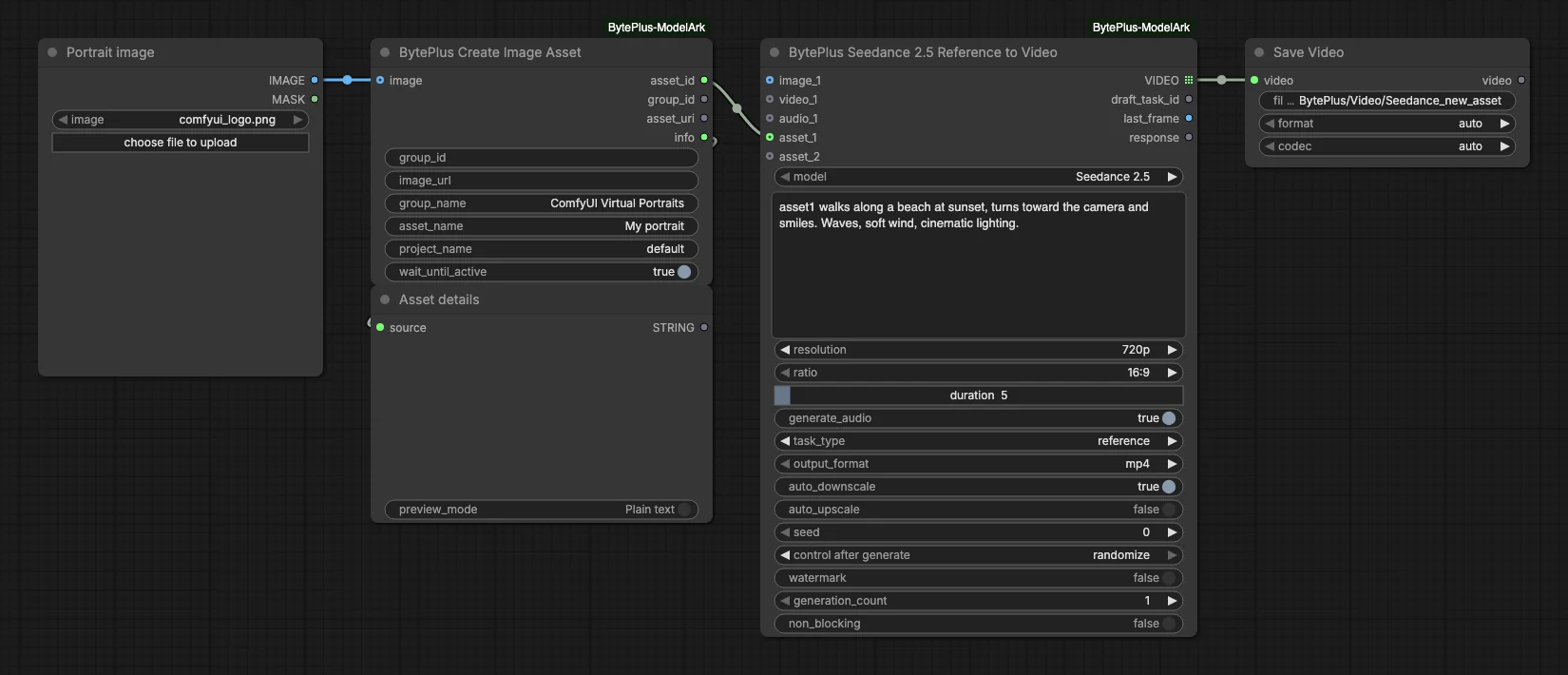
- Portrait image (Load Image) supplies the picture.
- Create Image Asset uploads it to Comfy.org storage, finds or creates the virtual portrait group “ComfyUI Virtual Portraits”, creates the asset “My portrait” and waits until it is Active (
wait_until_activeis on). Itsasset_idgoes toasset_1and itsinfogoes to an Asset details preview. - Seedance 2.5 Reference to Video uses model Seedance 2.5 at 720p and 16:9 for 5 seconds with
generate_audioon andtask_typereference. - Save Video keeps the clip under
BytePlus/Video/Seedance_new_asset.
Run it
Section titled “Run it”- Add your ModelArk API key and the IAM access key and secret key in Settings → BytePlus if you have not yet (API keys). The IAM keys need asset-library permission, and your account also needs Dreamina Seedance Advanced Creation Rights.
- Log in to your Comfy.org account in ComfyUI. A connected image is uploaded to Comfy.org storage first, because creating an asset takes a link.
- Open the template browser and choose Virtual Portrait - New Asset under BytePlus.
- In Portrait image, pick your own portrait.
- Press Run. The asset details appear first and the video follows when Seedance finishes.
Settings worth changing
Section titled “Settings worth changing”asset_nameandgroup_name: name the asset and its group. Use one group per person. An existinggroup_idadds the asset to a group you already have.image_url: an advanced input. A public HTTPS link replaces the image and skips the Comfy.org upload.- Prompt: keep
asset1where the person should appear and describe the action around it. resolution,ratioandduration: change the size and length of the clip.wait_until_active: keep it on so Seedance only starts once the asset is usable.
Example result
Section titled “Example result”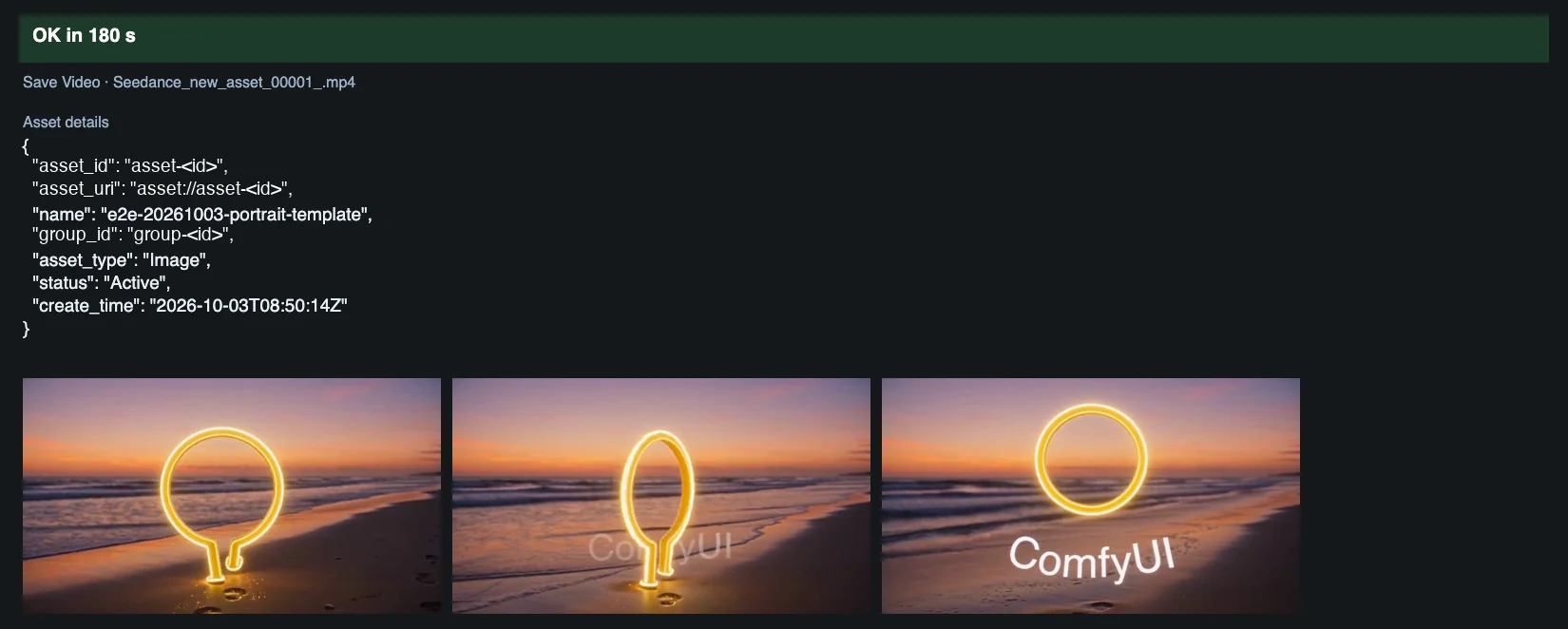
Time and cost
Section titled “Time and cost”Each generation bills one Seedance 2.5 video. Registering the asset is cached per image content, so running again with the same picture reuses the asset. The Seedance seed control is set to randomize, so every run makes a new clip and bills again. Set it to fixed and ComfyUI reuses the cached result of an unchanged workflow without billing. Only use media you are authorized to use.
Related
Section titled “Related”- Nodes: Create Image Asset, Seedance 2.5 Reference to Video
- Next step: Virtual Portrait - Existing Asset reuses a stored asset by ID or by name.