

Image Edit
- Template
- Image Edit, in the ComfyUI template browser under BytePlus
- Workflow file
- Image Edit.json
- BytePlus nodes
- Seedream 4.5 & 5.0
- Keys needed
- ModelArk API key
- Also uses
- Load Image, MarkdownNote, Save Image (built into ComfyUI)
What it makes
Section titled “What it makes”One edited image. The sample prompt changes the sky to an orange sunset and the dress to teal while keeping the character, pose and drawing style. Both the reference and prompt guide the result. Preservation is a request to the model, so review the output for unwanted changes.
The workflow
Section titled “The workflow”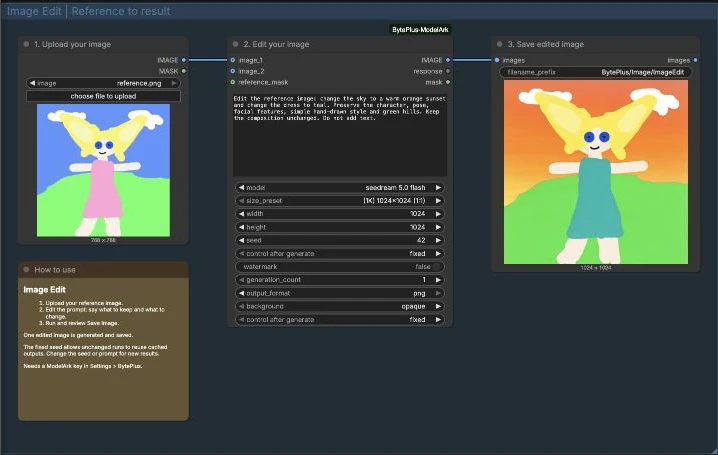
- Load Image supplies your reference as
image_1. - Seedream uses Seedream 5.0 Flash at 1024 × 1024 to generate one edit.
- Save Image saves the edited image.
Run it
Section titled “Run it”- Add your ModelArk key in Settings → BytePlus (API keys).
- Open Image Edit and upload your reference in Load Image.
- Edit the prompt to say what to keep and what to change.
- Press Run, then review the results in Save Image.
Settings worth changing
Section titled “Settings worth changing”- Prompt: describe the intended changes and the details you want preserved.
size_preset: choose another output size or ratio. The template starts at 1K square.seed: the fixed seed allows unchanged runs to use ComfyUI’s cached output. Change it for a new result.generation_count: starts at 1. Each additional generation requests another billed image.model: switch to Seedream 5.0 Pro if you want to try another model; its settings differ.
Example result
Section titled “Example result”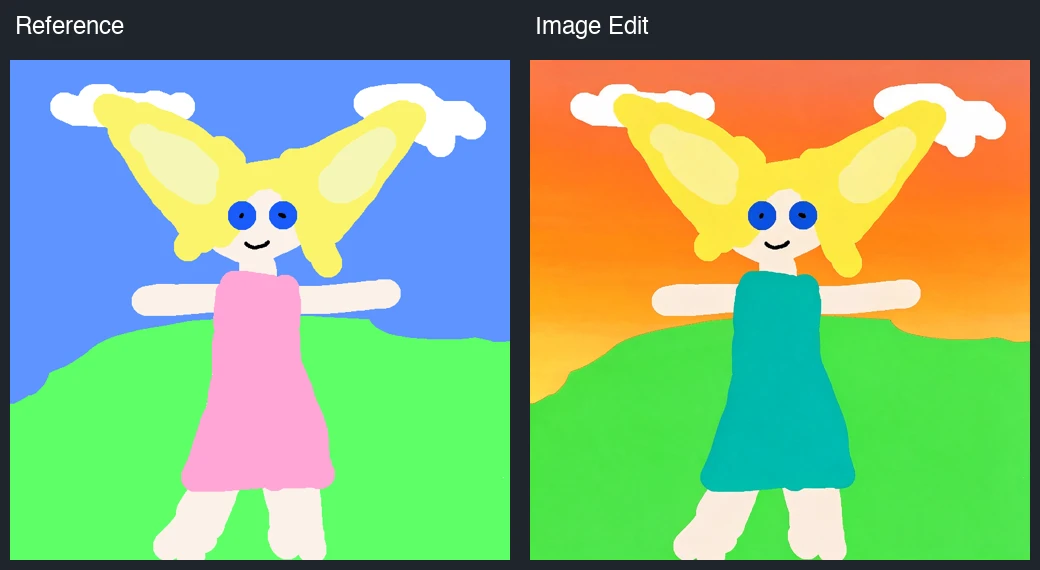
Time and cost
Section titled “Time and cost”The template generates one billed image. An unchanged run with fixed seeds reuses cached outputs; changing the reference, prompt or seed requests new generations. If a batch partially fails, the node can return fewer images, so check the saved count.
Related
Section titled “Related”- Seedream
- Image Variations
- Text to Image to Video animates a generated image.