

Podcast Clip
- Template
- Podcast Clip, in the ComfyUI template browser under BytePlus
- Workflow file
- Podcast Clip.json
- BytePlus nodes
- BytePlus LLM, Seed Speech TTS ×2, Seed Speech ASR, Seedream 4.5 & 5.0
- Keys needed
- ModelArk API key, Seed Speech API key
- Also uses
- Concatenate Audio, Extract Text, MarkdownNote, Preview as Text, Save Audio (Advanced), Save Image, Text (Multiline) (built into ComfyUI)
What it makes
Section titled “What it makes”A short audio episode with a host and a guest, an SRT subtitle file for it and a square cover picture. It is for creators who want a quick explainer clip on any topic. The idea: one language model writes the dialogue and the cover prompt, two TTS voices speak the two roles, speech recognition turns the finished audio back into timed subtitles and Seedream paints the cover.
The workflow
Section titled “The workflow”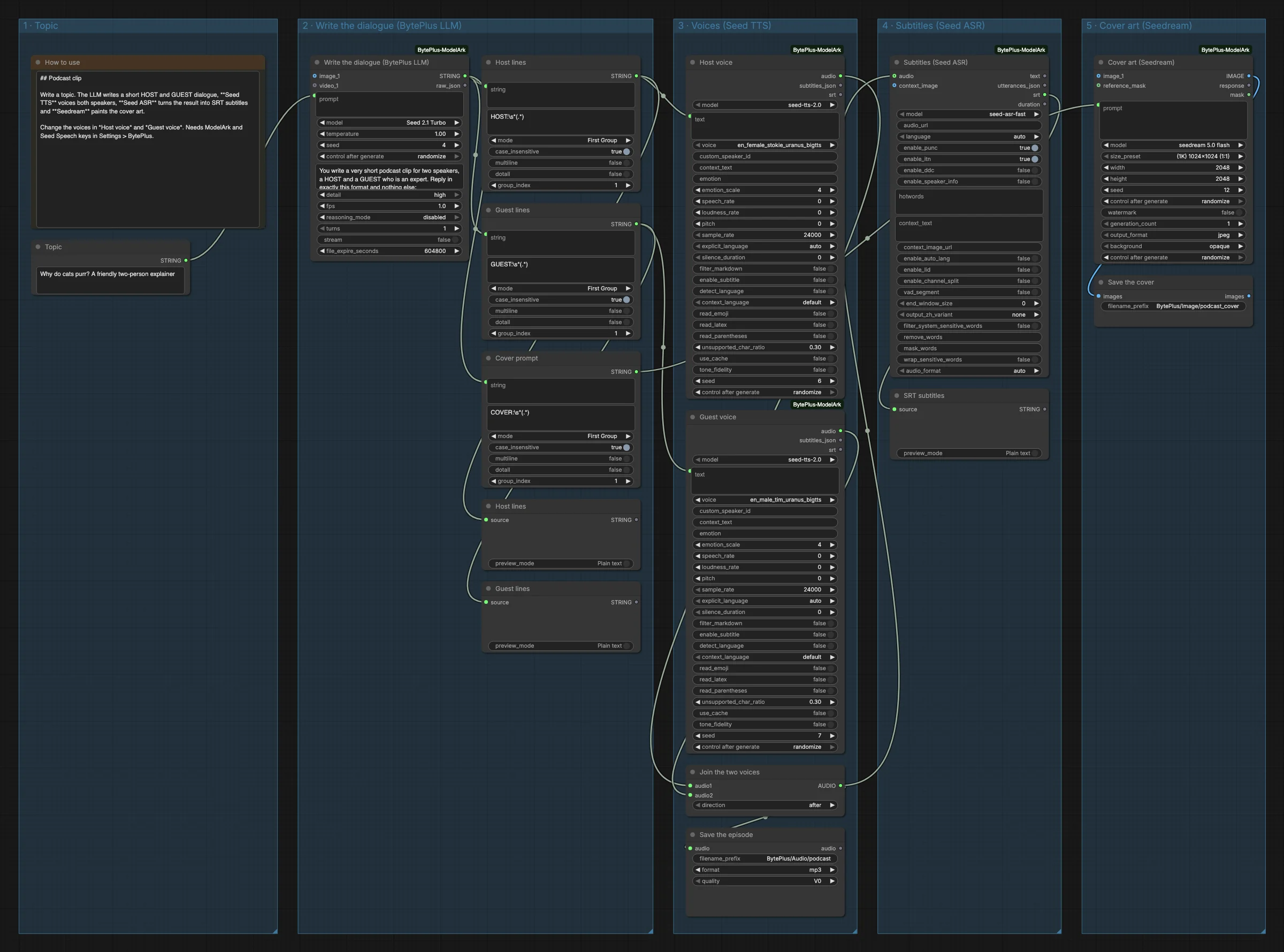
- A Topic text node holds the subject (“Why do cats purr? A friendly two-person explainer”).
- BytePlus LLM (Seed 2.1 Turbo) replies with
HOST:,GUEST:andCOVER:lines. Three Extract Text nodes split them, and Preview as Text nodes show the host and guest lines. - Two Seed Speech TTS nodes, Host voice (an English female voice) and Guest voice (an English male voice), speak the lines with
seed-tts-2.0. - Concatenate Audio (titled “Join the two voices”) joins the two clips, guest after host, and Save Audio (Advanced) writes an MP3 to
BytePlus/Audio/podcast. - Seed Speech ASR (
seed-asr-fast) transcribes the joined audio. Itssrtoutput is shown in a Preview as Text node. - Seedream 4.5 & 5.0 (Seedream 5.0 Flash, 1:1 at 1K) paints the cover from the
COVER:prompt, and Save Image keeps it.
Run it
Section titled “Run it”- Add your ModelArk API key and your Seed Speech API key in Settings → BytePlus if you have not yet (API keys). The template needs both.
- Open the template browser and choose Podcast Clip under BytePlus.
- Type your own subject in Topic.
- Press Run. The dialogue appears first, then the audio, the subtitles and the cover.
Settings worth changing
Section titled “Settings worth changing”- Topic: add the tone or the audience, for example “for ten-year-olds”.
- Host voice and Guest voice: pick two clearly different voices. Voice names start with a language code, so keep both in the language of the dialogue.
- System prompt of the LLM: change the number of sentences, or the language of the dialogue (then pick matching voices).
modelin Seed Speech ASR:seed-asr-fasthandles audio up to 2 hours in one request. The 2.0 and 1.0 models upload the audio to Comfy.org storage and need a login.- Cover
modelandsize_preset: switch to Seedream 5.0 Pro, or pick another ratio for the cover.
Example result
Section titled “Example result”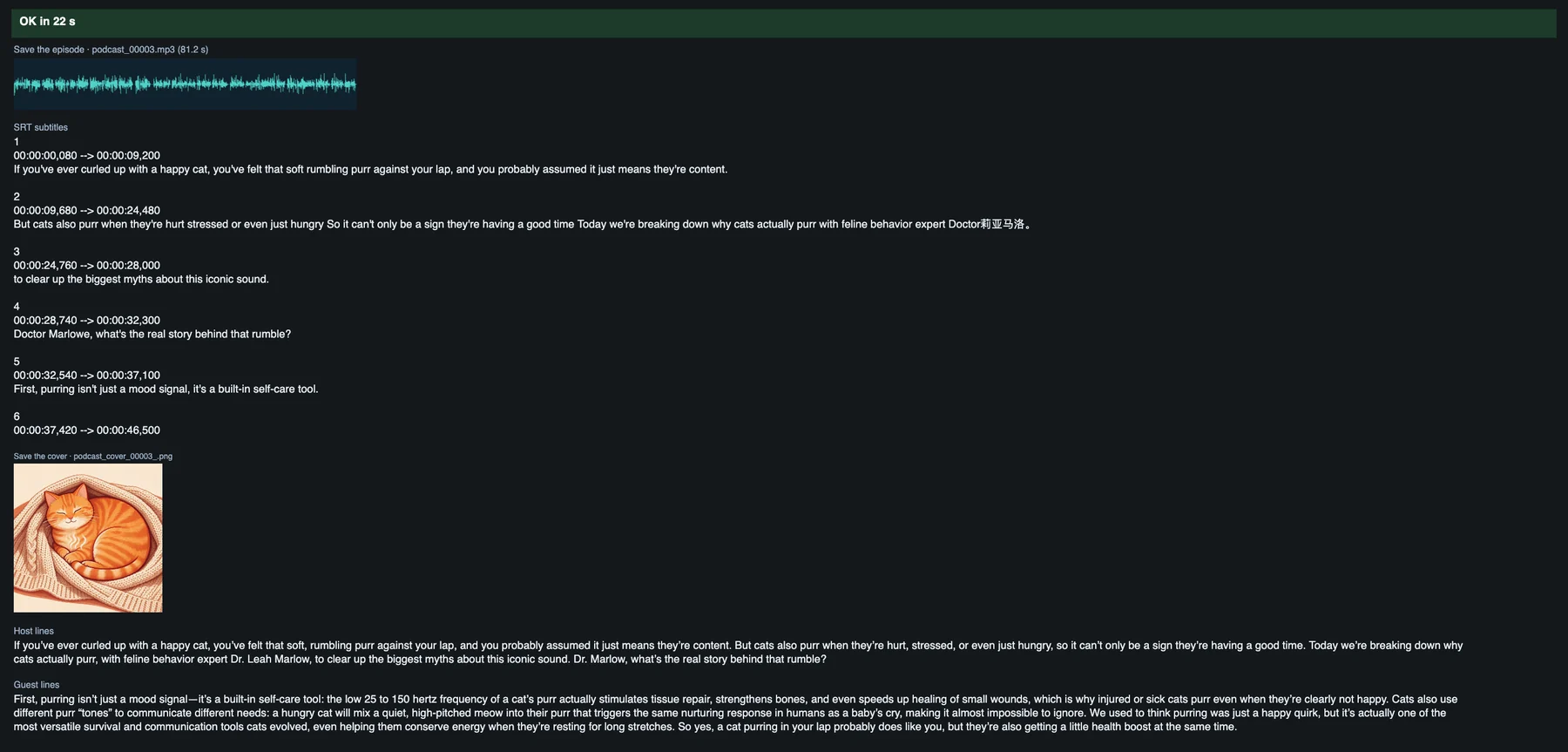
Time and cost
Section titled “Time and cost”The LLM and Seedream nodes bill on your ModelArk account, and the two TTS nodes and the ASR node bill on your Seed Speech account. The seed controls are set to randomize, so every run writes a new dialogue and cover and bills again. Set a control to fixed and ComfyUI reuses the cached result of an unchanged node without billing. Review the subtitles before publishing, especially names and empty entries.
Related
Section titled “Related”- Nodes: BytePlus LLM, Seed Speech TTS, Seed Speech ASR, Seedream 4.5 & 5.0
- Next step: Multilingual Dubbing turns a speech clip into another language.