

Multilingual Dubbing
- Template
- Multilingual Dubbing, in the ComfyUI template browser under BytePlus
- Workflow file
- Multilingual Dubbing.json
- BytePlus nodes
- Seed Speech ASR, BytePlus LLM, Seed Speech TTS
- Keys needed
- Seed Speech API key, ModelArk API key
- Also uses
- Load Audio, MarkdownNote, Preview as Text, Save Audio (Advanced) (built into ComfyUI)
What it makes
Section titled “What it makes”A new audio file in which your speech clip is spoken in another language, Japanese by default. It is for creators who want to localise a short voice-over or announcement. The idea is a three-step chain: speech recognition gets the words, a language model translates them, text-to-speech says them again.
The workflow
Section titled “The workflow”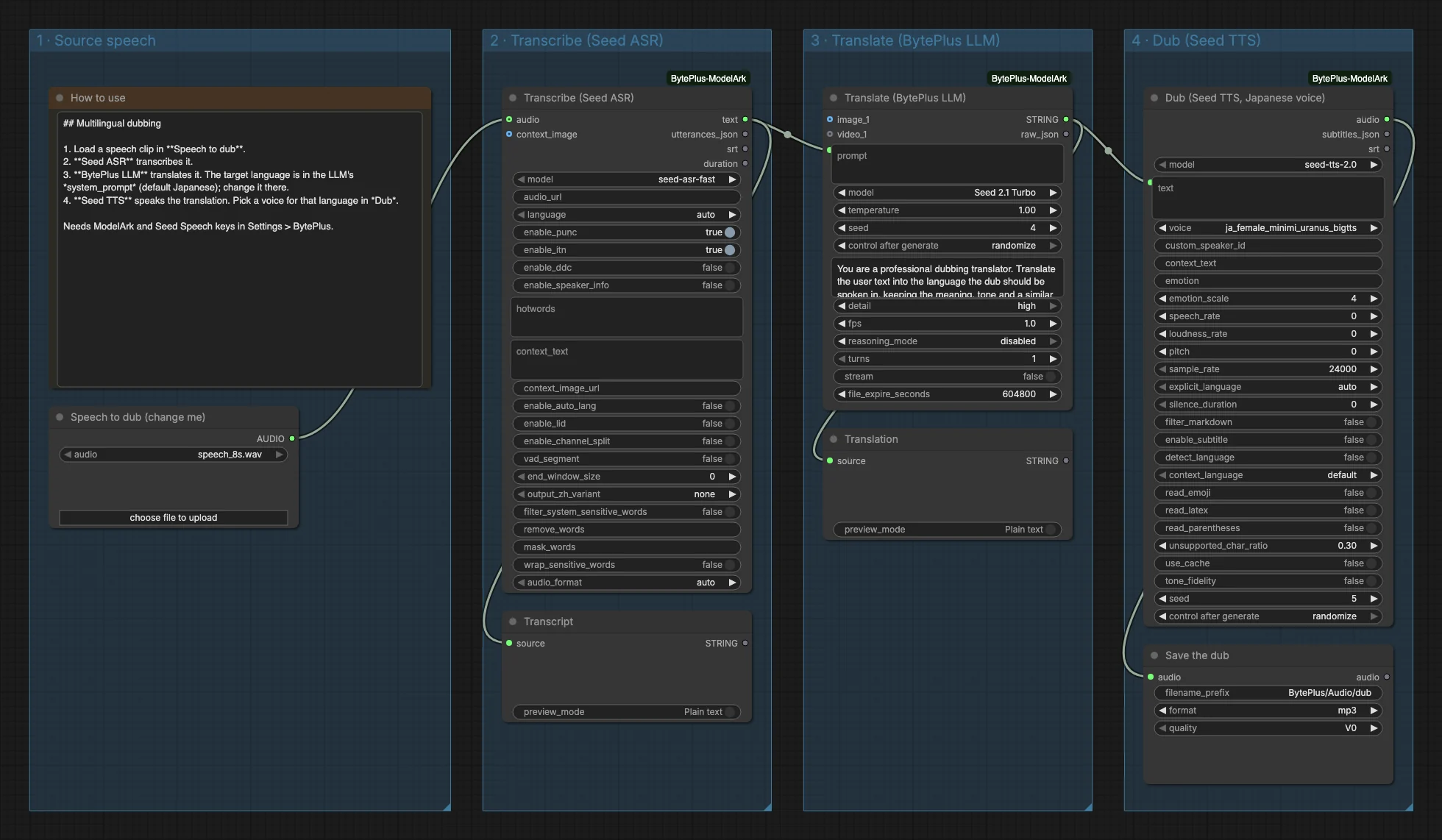
- Load Audio (titled “Speech to dub (change me)”) supplies the source clip. It points to a placeholder file,
speech_8s.wav, so pick your own clip. - Seed Speech ASR (
seed-asr-fast,languageauto) transcribes it. Thetextoutput goes to a Preview as Text node called Transcript. - BytePlus LLM (Seed 2.1 Turbo) translates the text. The target language is written in its system prompt (“Target language: Japanese.”), and the answer is shown in a Preview as Text node called Translation.
- Seed Speech TTS (
seed-tts-2.0, a Japanese female voice) speaks the translation. - Save Audio (Advanced) (titled “Save the dub”) writes an MP3 to
BytePlus/Audio/dub.
Run it
Section titled “Run it”- Add your Seed Speech API key and your ModelArk API key in Settings → BytePlus if you have not yet (API keys). The template needs both.
- Open the template browser and choose Multilingual Dubbing under BytePlus.
- In Speech to dub (change me), choose your own audio file.
- To dub into another language, change the last words of the LLM system prompt and pick a voice for that language in the TTS node.
- Press Run. The transcript and translation appear, then the dub.
Settings worth changing
Section titled “Settings worth changing”- Target language in the LLM system prompt: the only place the language is set. Write it as a plain language name.
voicein the TTS node: voice names start with a language code. Choose one that matches the language you translate into.speech_ratein the TTS node: a dub is not timed to the original. Raise or lower it when the result runs longer or shorter than the source.languagein Seed Speech ASR: leaveautofor English or Chinese. Pick the language for other sources.modelin Seed Speech ASR: the fast model takes the clip inline. The 2.0 and 1.0 models upload it to Comfy.org storage first, which needs a login.
Example result
Section titled “Example result”
Time and cost
Section titled “Time and cost”Seed Speech ASR and Seed Speech TTS bill on your Seed Speech account, and the LLM bills on your ModelArk account. The LLM and TTS seed controls are set to randomize, so every run translates and speaks again and bills again. Set a control to fixed and ComfyUI reuses the cached result of an unchanged node without billing.
Related
Section titled “Related”- Nodes: Seed Speech ASR, BytePlus LLM, Seed Speech TTS
- Next step: Podcast Clip writes its own dialogue and voices two speakers.