

Old Photo to Living Memory
- Template
- Old Photo to Living Memory, in the ComfyUI template browser under BytePlus
- Workflow file
- Old Photo to Living Memory.json
- BytePlus nodes
- Seedream 4.5 & 5.0, Image Quality Enhance, Seedance 2.5 First-Last-Frame to Video, Video Smoothness Enhance
- Keys needed
- ModelArk API key, AI MediaKit API key
- Also uses
- Extract Text, MarkdownNote, Save Image, Save Video (built into ComfyUI)
What it makes
Section titled “What it makes”A restored, larger copy of an old photo and a 5-second clip in which the people in it smile and blink. It is for anyone with a family picture they would like to see move. The idea: restore first, animate second, so the video starts from a clean frame, and finish with a smoothing pass that repairs stutter.
The workflow
Section titled “The workflow”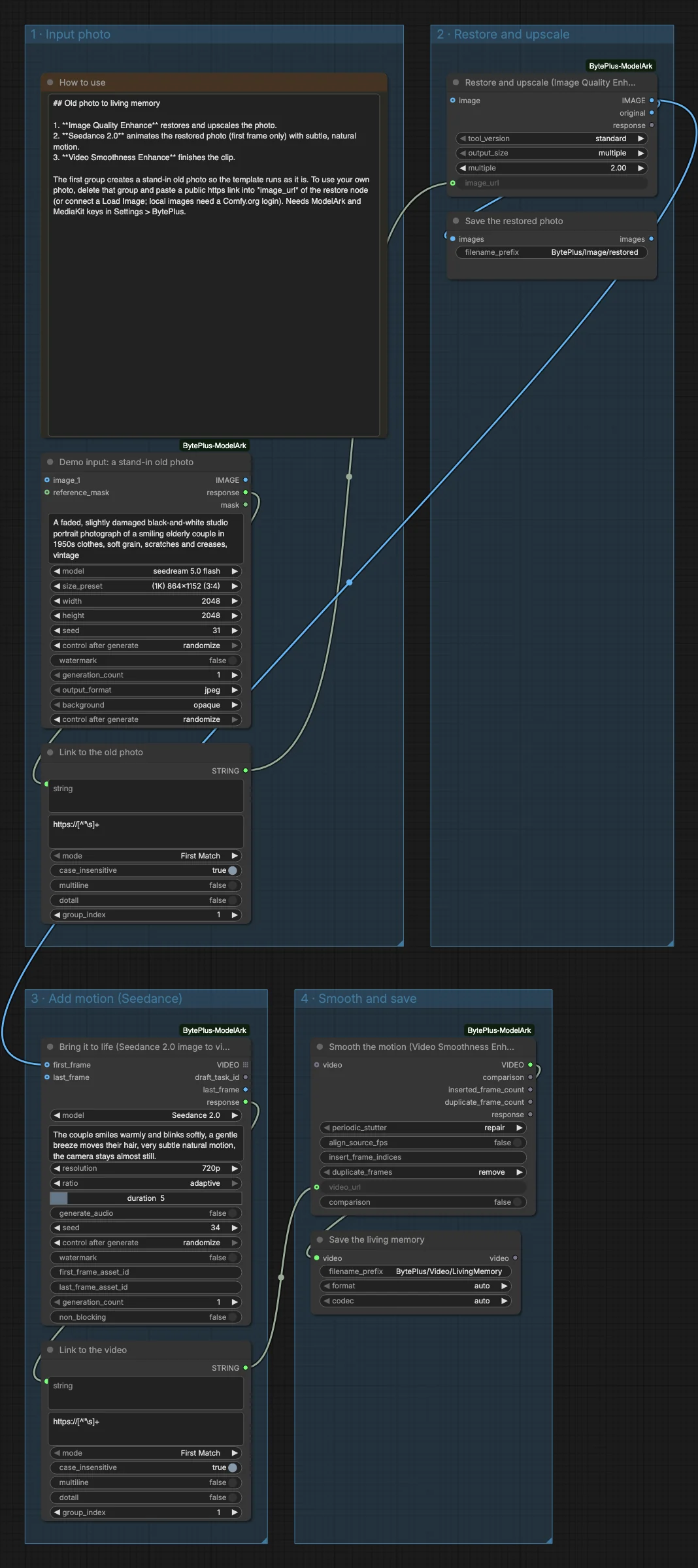
- Seedream 4.5 & 5.0 (Seedream 5.0 Flash) paints a faded black-and-white portrait of an elderly couple as a stand-in for your photo. An Extract Text node turns its
responseinto a link. - Image Quality Enhance restores and upscales the photo from that link with
tool_versionstandard andoutput_sizemultiple at 2.0. Save Image keeps the restored photo. - Seedance 2.5 First-Last-Frame to Video with the model set to Seedance 2.0 uses the restored photo as its first frame and the prompt “The couple smiles warmly and blinks softly … very subtle natural motion, the camera stays almost still.” It makes 5 seconds at 720p with the ratio on adaptive and no audio.
- A second Extract Text node pulls the video link out of the Seedance
response. - Video Smoothness Enhance gets that link, repairs periodic stutter and removes duplicate frames. Save Video writes the clip to
BytePlus/Video/LivingMemory.
Run it
Section titled “Run it”- Add your ModelArk API key and your AI MediaKit API key in Settings → BytePlus if you have not yet (API keys). The template needs both.
- Open the template browser and choose Old Photo to Living Memory under BytePlus.
- To use your own photo, delete the first group and paste a public https link to the picture into
image_urlof Image Quality Enhance. A Load Image node also works, but then log in to your Comfy.org account in ComfyUI: a connected image is uploaded to Comfy.org storage first. - Press Run. The restored photo appears first, the video follows.
Settings worth changing
Section titled “Settings worth changing”- Prompt of the Seedance node: describe the motion you want and keep it small, such as a blink, a smile or a breeze.
tool_versionin Image Quality Enhance: standard is the fast clean-up. Professional is meant for fine texture on old photos and portraits; check the node page for its limits.multiplein Image Quality Enhance: 2.0 here. Choosetarget sizeto set a width and height instead.duration: the template sets 5 seconds on the Seedance node.periodic_stutterandduplicate_frames: set either todetect onlyto count issues without changing the video.
Example result
Section titled “Example result”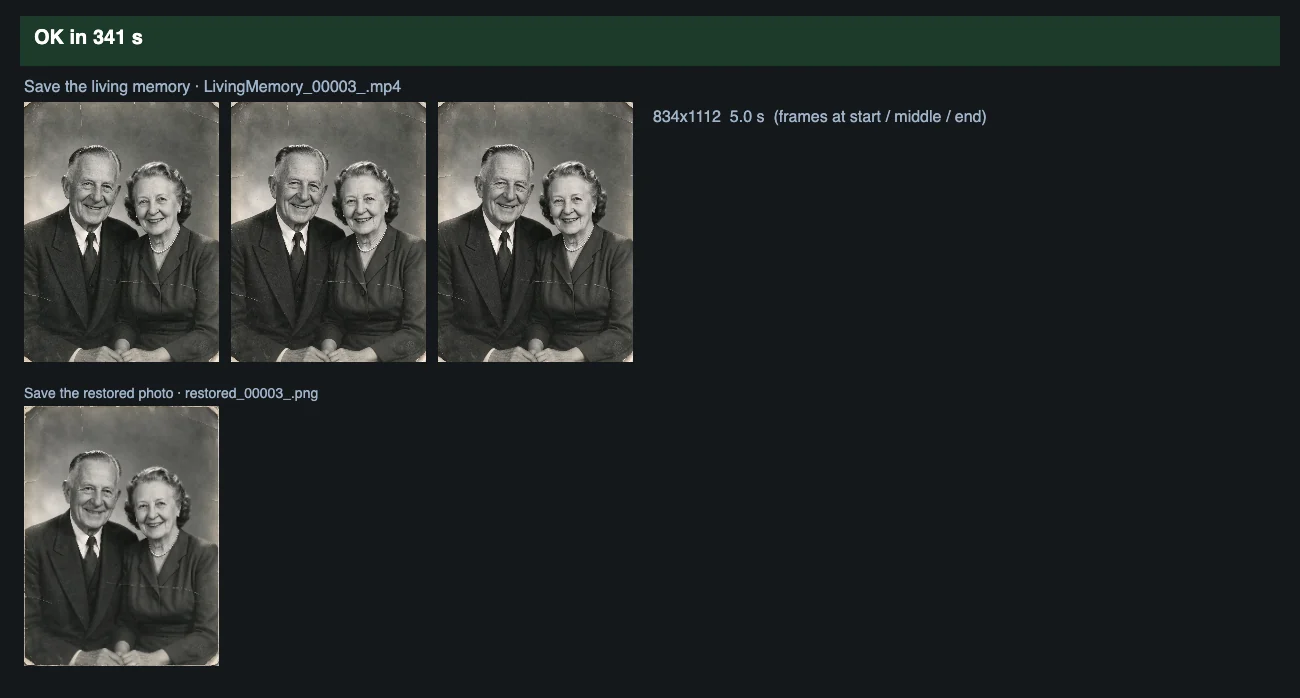
Time and cost
Section titled “Time and cost”Seedream and Seedance bill on your ModelArk account; Image Quality Enhance and Video Smoothness Enhance bill on your AI MediaKit account. The seed controls are set to randomize, so every run makes a new photo and clip and bills again. Set a control to fixed and ComfyUI reuses the cached result of an unchanged node without billing. Both MediaKit nodes read their input from a link, so no Comfy.org login is needed as long as you keep the links.
Related
Section titled “Related”- Nodes: Seedream 4.5 & 5.0, Image Quality Enhance, Seedance 2.5 First-Last-Frame to Video, Video Smoothness Enhance
- Next step: Video Smoothness Enhance shows the smoothing node on its own, with a side-by-side comparison.