

Character Sheet Cleanup
- Template
- Character Sheet Cleanup, in the ComfyUI template browser under BytePlus
- Workflow file
- Character Sheet Cleanup.json
- BytePlus nodes
- Seedream 4.5 & 5.0
- Keys needed
- ModelArk API key
- Also uses
- Format Text, Load Image, MarkdownNote, Preview as Text, Save Image, Text (Multiline) (built into ComfyUI)
What it makes
Section titled “What it makes”An edited copy of a three-panel character sheet in which the front full-body figure has no head. The close-up panel stays as the only readable face. It is for sheets that will be used as a video reference, where one clear face keeps the reference unambiguous. The original is not changed, so you can compare both and pick one.
The workflow
Section titled “The workflow”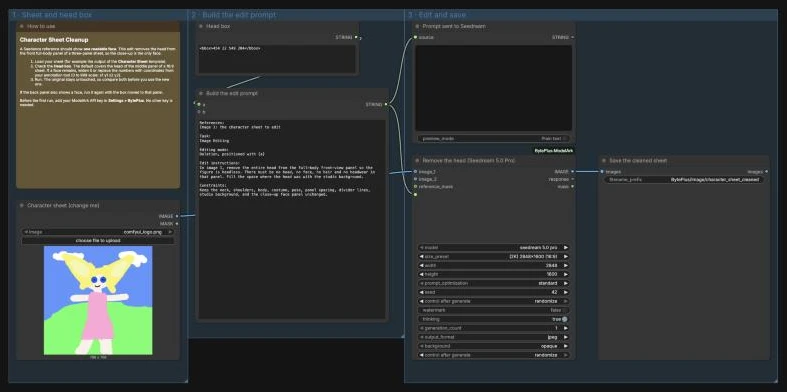
- Load Image (titled “Character sheet (change me)”) supplies the sheet. Choose the image made by Character Sheet or your own.
- Head box holds a
<bbox>x1 y1 x2 y2</bbox>tag on a 0 to 999 scale. The default covers the head of the middle panel of a 16:9 three-panel sheet. - Build the edit prompt (Format Text, a ComfyUI core node) inserts the box into a fixed edit instruction: remove the whole head from the front full-body panel, fill the space with the studio background, and keep the neck, body, costume, divider lines and close-up unchanged. Prompt sent to Seedream shows it.
- Seedream 4.5 & 5.0 runs
seedream 5.0 prowith the sheet asimage_1and edits it. - Save Image writes the result to
BytePlus/Image/character_sheet_cleaned.
Run it
Section titled “Run it”- Add your ModelArk API key in Settings → BytePlus if you have not yet (API keys). This template needs no other key.
- Open the template browser and choose Character Sheet Cleanup under BytePlus.
- In Load Image, upload your sheet. Adjust Head box if your panels are laid out differently.
- Press Run and compare the saved image with the original.
Settings worth changing
Section titled “Settings worth changing”- Head box: the default is a starting estimate. If a face is still visible, widen the box to the whole head, hair and headwear included. For exact numbers, take them from an annotation tool.
- The edit instruction: to remove the neck as well, change the text in Build the edit prompt to say “head and neck”. Do this if the edit keeps drawing a head.
- Back panel: if the back view also shows a face, run the template again with the box moved to that panel.
size_preset(Seedream): the template uses 16:9 at 2K, which matches the sheet from Character Sheet. Use the ratio of your own sheet.seed: the edit is a new generation. Change the seed for another attempt.
Example result
Section titled “Example result”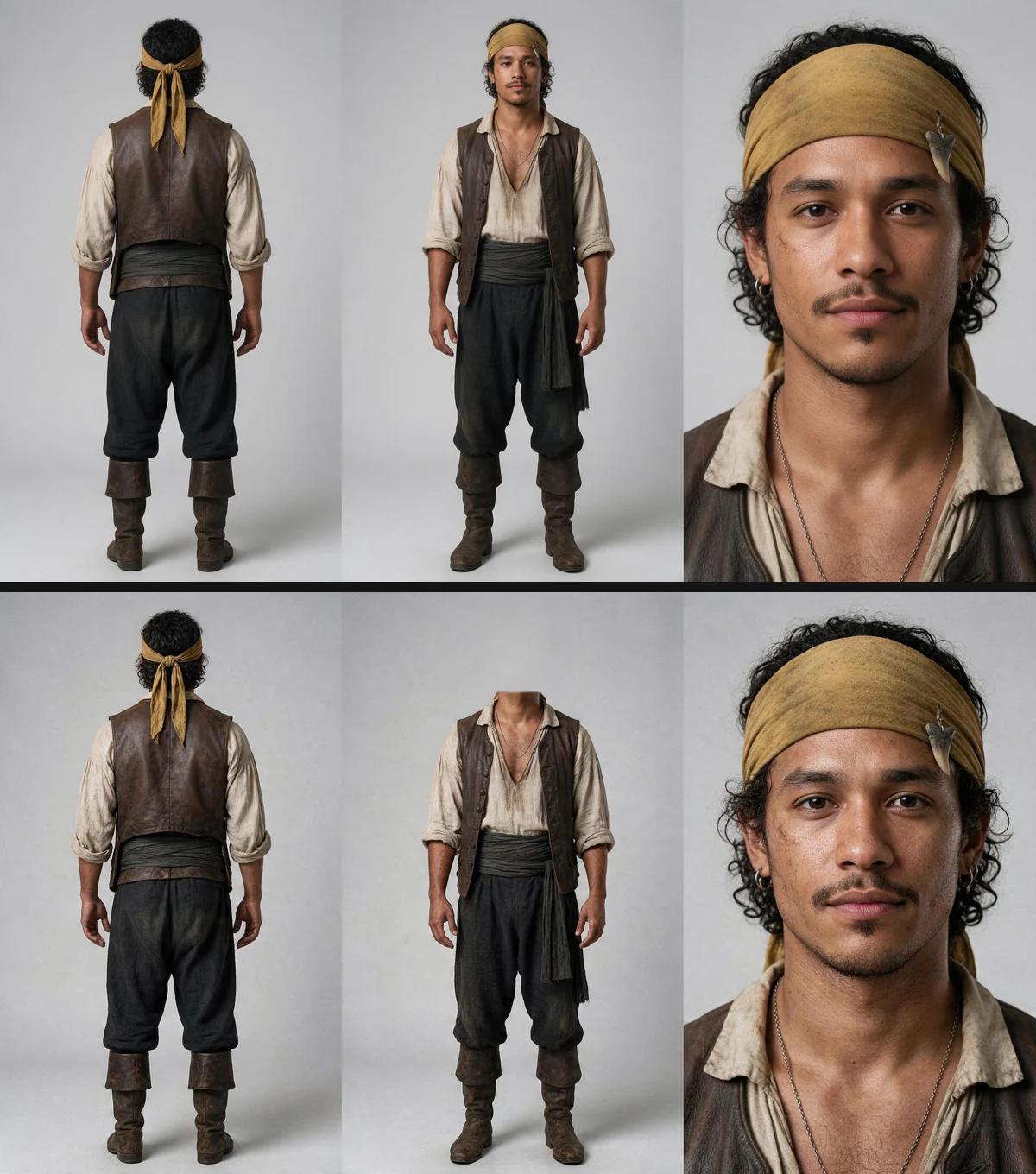
In the edited sheet the front figure has no head and the studio background fills the gap. The costume, pose, divider lines and the close-up are unchanged, so the close-up is the only face. The back view keeps the back of its head, which shows no face. Compare the two sheets side by side and look for a blurred or featureless head left behind.
Time and cost
Section titled “Time and cost”The template bills one Seedream image per run. The seed control is set to randomize, so every run is a new generation and bills again. Set it to fixed and ComfyUI reuses the cached result of an unchanged workflow without billing. Keep the original sheet: the cleaned copy is a new version, not a replacement, until you have checked it.
Related
Section titled “Related”- Node: Seedream 4.5 & 5.0
- Next step: Character Sheet makes the sheet to clean. Consistent Character Shots uses a character portrait in video.