

Virtual Portrait - Existing Asset
- Template
- Virtual Portrait - Existing Asset, in the ComfyUI template browser under BytePlus
- Workflow file
- Virtual Portrait - Existing Asset.json
- BytePlus nodes
- Seedance 2.5 Reference to Video ×2, Asset Library
- Keys needed
- ModelArk API key, IAM access key and secret key
- Also uses
- Preview as Text, Save Video, Text (built into ComfyUI)
What it makes
Section titled “What it makes”One 5 second video of your virtual portrait, made by Seedance 2.5 Reference to Video. The prompt is “asset1 walks along a beach at sunset, turns toward the camera and smiles. Waves, soft wind, cinematic lighting.” and asset1 is the portrait from your library. The template has two ways to point at the asset, so you can paste its ID or let a library lookup find it by name.
The workflow
Section titled “The workflow”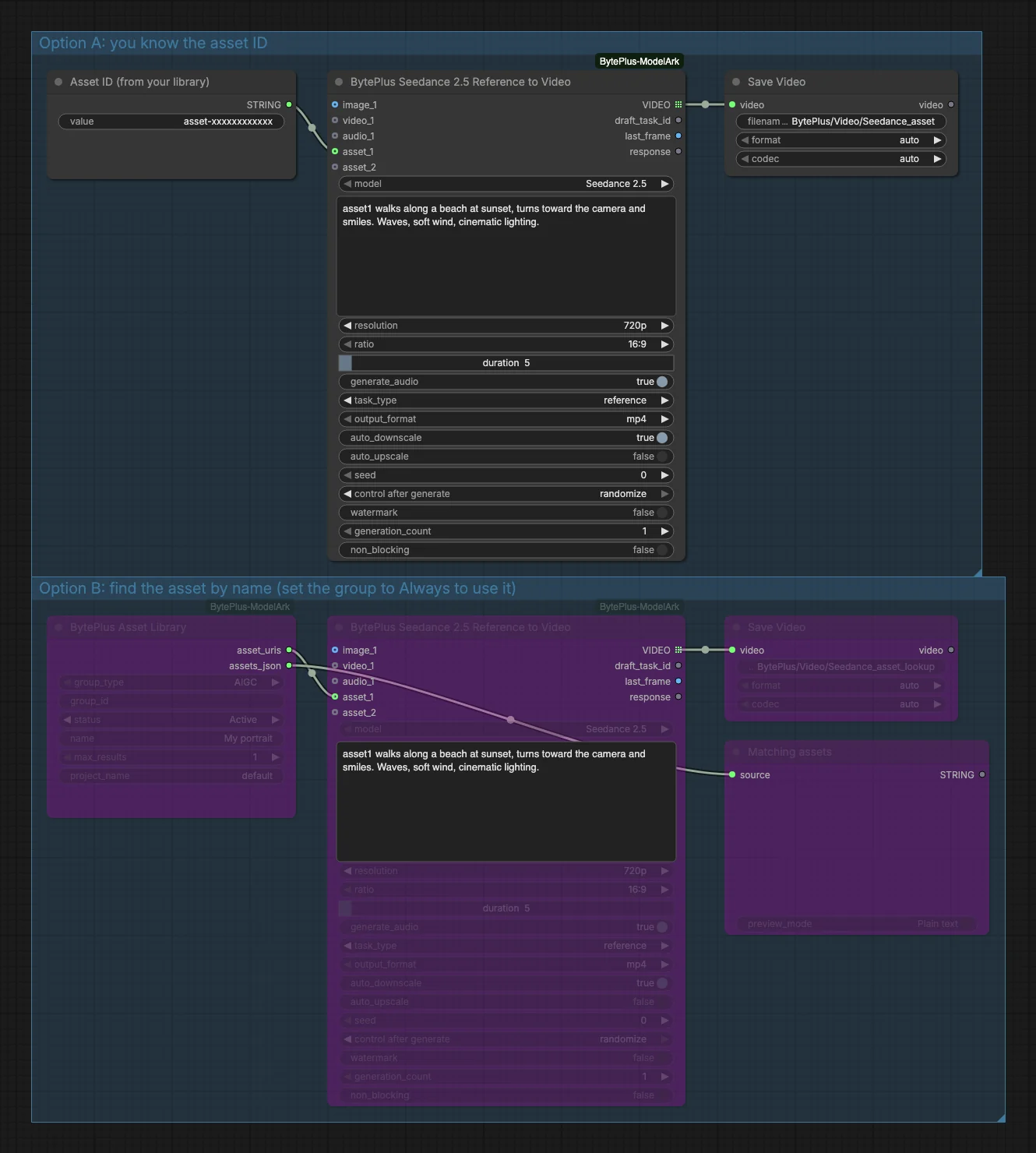
- Asset ID (from your library) is a text node. It holds a placeholder that you replace with the ID of your asset, and it feeds
asset_1. - Seedance 2.5 Reference to Video uses model Seedance 2.5 at 720p and 16:9 for 5 seconds with
generate_audioon andtask_typereference. - Save Video keeps the clip under
BytePlus/Video/Seedance_asset. - Asset Library (Option B) lists assets with
group_typeAIGC andstatusActive, filtered by the name “My portrait” withmax_results1. Itsasset_urisoutput goes toasset_1of a second Seedance 2.5 Reference node, andassets_jsongoes to a Matching assets preview.
Run it
Section titled “Run it”- Add your ModelArk API key and the IAM access key and secret key in Settings → BytePlus if you have not yet (API keys). The IAM keys need asset-library permission, and your account also needs Dreamina Seedance Advanced Creation Rights. The pack looks up the asset’s type with the IAM keys.
- Open the template browser and choose Virtual Portrait - Existing Asset under BytePlus.
- Option A: replace the placeholder in Asset ID (from your library) with your asset ID, then press Run.
- Option B: set the Option B group to Always, mute or bypass Option A (it would run with the placeholder ID), set
namein Asset Library to your asset’s name, and press Run.
Settings worth changing
Section titled “Settings worth changing”- Prompt: refer to the portrait as
asset1, as in the template. The node rewrites it for the model. nameandgroup_id(Asset Library): narrow the lookup to one asset. Keepmax_resultsat 1 so exactly one URI reachesasset_1.resolution,ratioandduration: change the size and length of the clip.model: the node lists other Seedance models too, such as Seedance 2.0. Its page shows the options.asset_2and further inputs: add more assets, images, videos or audio as references.
Example result
Section titled “Example result”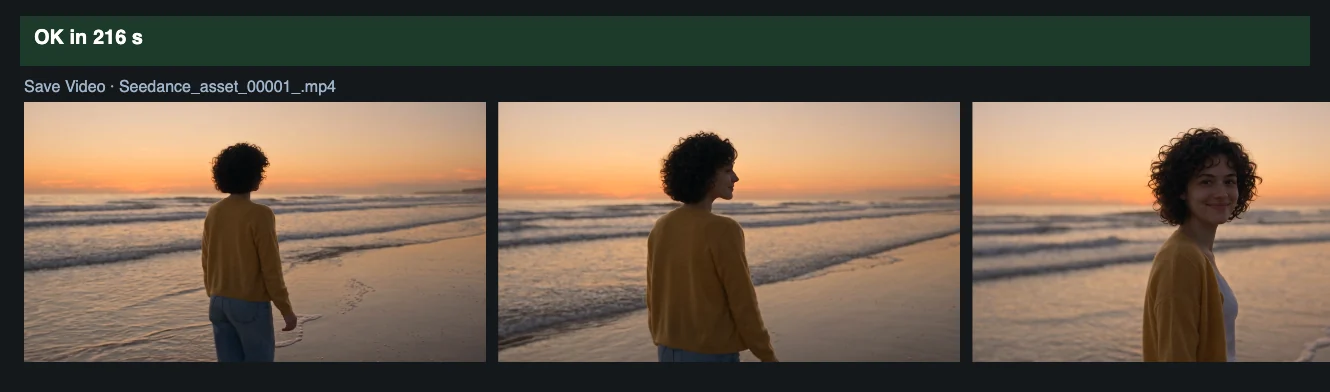
Time and cost
Section titled “Time and cost”Each generation bills one Seedance 2.5 video. Looking up an asset in the library does not generate anything. The Seedance seed control is set to randomize, so every run makes a new clip and bills again. Set it to fixed and ComfyUI reuses the cached result of an unchanged workflow without billing. Only use media you are authorized to use.
Related
Section titled “Related”- Nodes: Seedance 2.5 Reference to Video, Asset Library
- Next step: Virtual Portrait - New Asset registers an image as a new asset and uses it in the same run.