

Seedream Layer Separation
- Template
- Seedream Layer Separation, in the ComfyUI template browser under BytePlus
- Workflow file
- Seedream Layer Separation.json
- BytePlus nodes
- Seedream 5.0 Layer Separation
- Keys needed
- ModelArk API key
- Also uses
- Load Image, Preview Image, Save Image (built into ComfyUI)
What it makes
Section titled “What it makes”A background image and a stack of layers. Seedream looks at one picture (the ComfyUI logo) and decomposes it into a base image plus the elements on top of it, each as its own layer. The example contains two layers: the yellow ring and the word ComfyUI. You can then move or edit each layer on its own.
The workflow
Section titled “The workflow”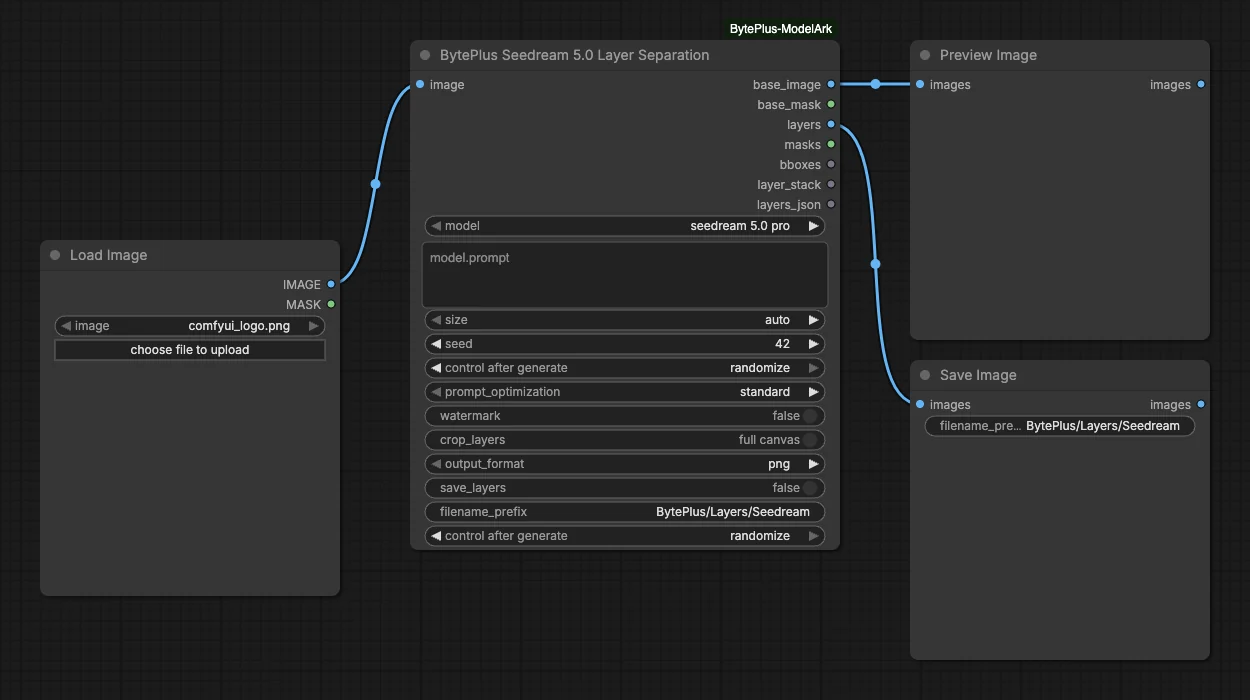
- Load Image supplies one picture. The node takes exactly one image.
- Seedream 5.0 Layer Separation runs with the model
seedream 5.0 pro, an emptyprompt(it finds the main elements by itself),sizeset toautoandcrop_layersset tofull canvas. - Preview Image shows
base_image, the background plate. - Save Image receives
layersand writes each layer to the output folder asBytePlus/Layers/Seedream. Withfull canvasevery layer sits on a black canvas the size of the base at its own position.
Run it
Section titled “Run it”- Add your ModelArk API key in Settings → BytePlus if you have not yet (API keys).
- Open the template browser and choose Seedream Layer Separation under BytePlus.
- Press Run. The background shows in Preview Image and the layers in Save Image.
Settings worth changing
Section titled “Settings worth changing”- Image: pick your own picture in Load Image. It must be one picture of at least 262,144 pixels (for example 512x512).
prompt: leave it empty to separate all major elements, or name the elements you want in plain words. You can also target regions with<bbox>left top right bottom</bbox>tags.crop_layers: switch tominimal sizeto crop each layer to its bounding box. That gives smaller images; use thebboxesoutput to put them back.save_layers: an advanced input. Turn it on to also write the base image and the original layer PNGs from the node itself.prompt_optimization:standardis set;fastshortens generation time.
Example result
Section titled “Example result”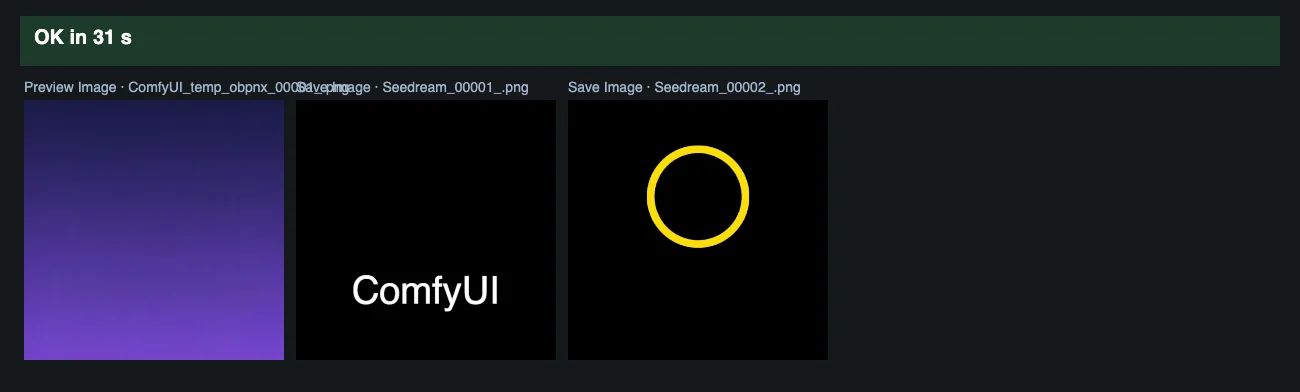
Time and cost
Section titled “Time and cost”The node bills once per run through your ModelArk account. The seed control is set to randomize, so every run asks again and bills again. Set it to fixed and ComfyUI reuses the cached result of an unchanged workflow without billing.
Related
Section titled “Related”- Node: Seedream 5.0 Layer Separation
- Next step: Image Quality Enhance raises the resolution of an image.