API keys
The nodes call BytePlus with your own keys. You save each key once in Settings → BytePlus. Workflows contain no keys and no client nodes, so you can share a workflow safely.
The four key types
Section titled “The four key types”Each BytePlus product has its own key. They are not interchangeable: a ModelArk API key does not work on a Seed Speech node.
| Key | Create it in | Used by |
|---|---|---|
| ModelArk API key | ModelArk console | Seedream, Seedance, Video Query Tasks, BytePlus LLM and the asset library nodes |
| Seed Speech API key | Seed Speech console, then Settings → API Keys. Activate the services first. | Seed Audio, Seed Speech TTS, ASR and Voice Clone |
| AI MediaKit API key | AI MediaKit console, then Settings → API key | vCube Video Enhance, Video Smoothness Enhance, Image Quality Enhance |
| IAM access key and secret key | IAM console. Use a sub-user whose policy allows only the asset library. | Create Image, Video and Audio Asset, Asset Library, and looking up an asset ID in an asset_N input |
You only need the keys for the nodes you use. Each node page lists them in its Keys needed row.
Save a key in Settings
Section titled “Save a key in Settings”- Open Settings (the gear icon, or Ctrl+, / Cmd+,) and search for BytePlus.
- Under Default credentials, find the row for your key, for example ModelArk API key.
- Paste the key. For the ModelArk API key, also pick its region.
- Press Save. Remove deletes the saved value again.
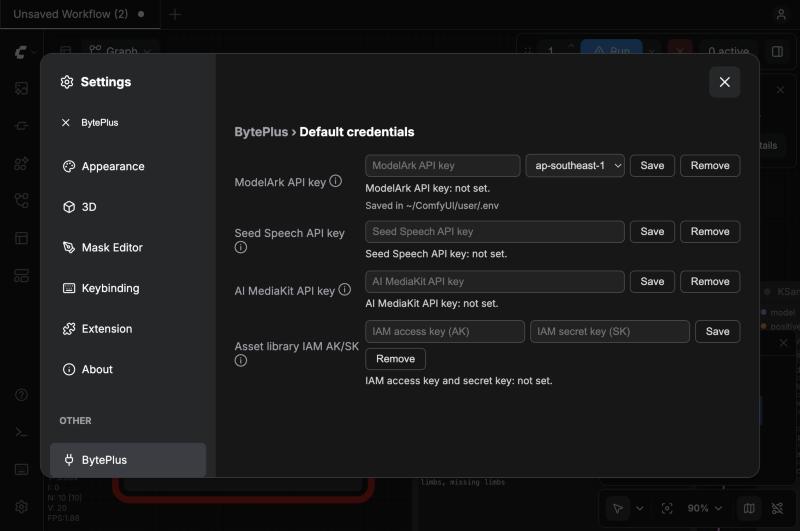
ModelArk API keys are checked with BytePlus before they are saved. A wrong key is refused and nothing is written. If BytePlus cannot be reached, the key is saved and Settings says it could not be checked. The key takes effect at once, with no restart. Seed Speech and AI MediaKit API keys are saved without a check.
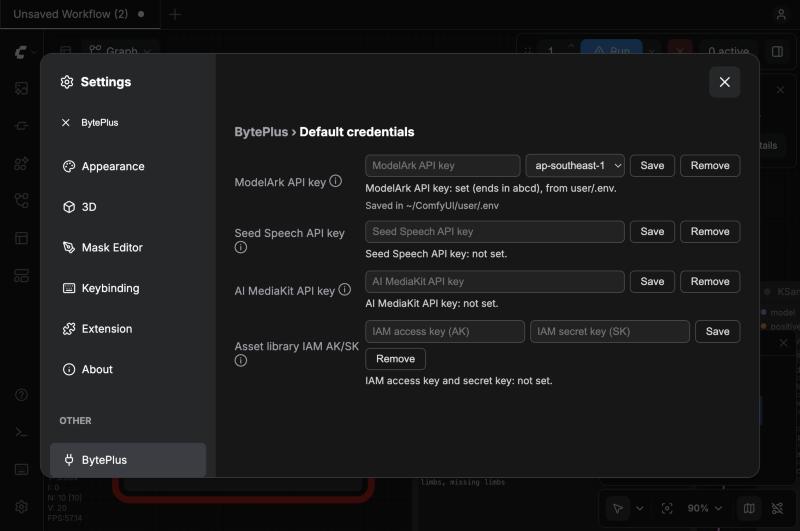
Keys are never shown again. Settings only says whether a key is set, where it comes from and its last four characters. The key is written to user/.env in your ComfyUI folder and never into a workflow file.
The IAM access key and secret key go together: fill in both. Settings has no field for an STS session token. To use one, add BYTEPLUS_SESSION_TOKEN to user/.env after you save the pair, because saving or removing the pair in Settings also removes that line.
Or edit user/.env by hand
Section titled “Or edit user/.env by hand”Create user/.env in your ComfyUI folder and add only the lines you need. Use your own values in place of the placeholders:
BYTEPLUS_API_KEY=your-modelark-keyBYTEPLUS_REGION=ap-southeast-1BYTEPLUS_SEED_SPEECH_API_KEY=your-seed-speech-keyBYTEPLUS_VOD_MEDIAKIT_API_KEY=your-mediakit-keyBYTEPLUS_ACCESS_KEY=your-iam-access-keyBYTEPLUS_SECRET_KEY=your-iam-secret-keyThe file is read again whenever it changes, so no restart is needed. The pack never touches other lines in it. Settings → BytePlus shows its path under the ModelArk row (“Saved in …”). The file does not exist until you save a key.
Region
Section titled “Region”Pick the region where you created the ModelArk API key: ap-southeast-1 (the default) or eu-west-1. A key and a region that do not match give an Invalid API Key (401) error. Settings catches this when you save: it says BytePlus rejected the key for the selected region. See Keys and regions.
Environment variables win
Section titled “Environment variables win”A real environment variable with the same name beats the value in user/.env. Settings tells you when that happens (“An environment variable overrides the value in user/.env”). If BYTEPLUS_REGION is set as an environment variable, the region drop-down is locked, because the variable decides.
Keep your keys safe
Section titled “Keep your keys safe”Check that it works
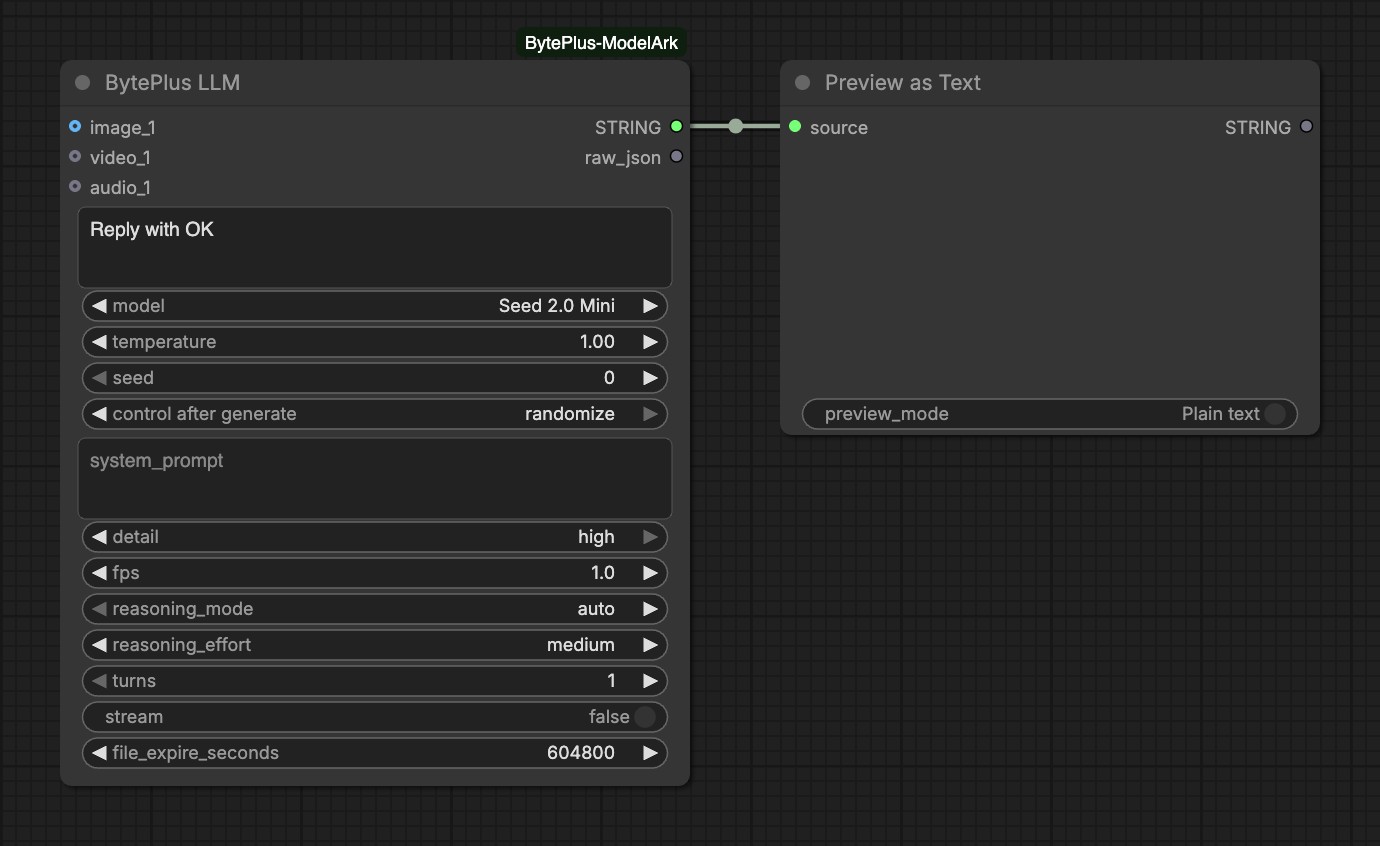
Section titled “Check that it works”Add BytePlus LLM, type Reply with OK, choose Seed 2.0 Mini and connect the output to Preview as Text (Preview Any in older ComfyUI). Press Run. It costs a few tokens. Change the prompt or seed between runs, because ComfyUI reuses the cached result of an unchanged node.